

Does Exness Allow Bot Trading?
Yes, Exness lets you use automated trading bots. You can run Expert Advisors (EAs) on the desktop versions of MetaTrader 4 (MT4) and MetaTrader 5 (MT5). If you qualify, Exness can host your bots on a free VPS. However, bots do not work on the Exness Terminal or Exness Trade app, and the client agreement allows Exness to cancel profits from bots designed to take advantage of price delays.
 Written By
Christian Harris
Christian is a seasoned analyst, leveraging his expertise in stocks, forex, and crypto to evaluate brokers worldwide. With hands-on trading experience and a strong focus on risk management, he helps traders find reliable platforms. Christian's work for BrokerListings.com has been cited in the Financial Times.
Christian Harris Profile Page Fact Checked By
Tobias Robinson
Tobias is committed to helping traders find the right brokerage for their needs. He has tested 200+ brokers, spent 2,600+ hours using different platforms, and placed 2,100+ trades.
Tobias Robinson Profile Page Edited By
James Barra
James is an experienced broker analyst with a background in financial services. He has spent 2,500+ hours testing brokers, used 35+ different platforms and apps, audited 120+ broker T&Cs, and verified 300+ regulatory licenses. James has also been on US and UK TV, and been a guest on finance podcasts, discussing reports conducted by BrokerListings.com and sharing his expertise.
James Barra Profile PageOctober 16, 2026
Where Can You Run A Trading Bot At Exness?
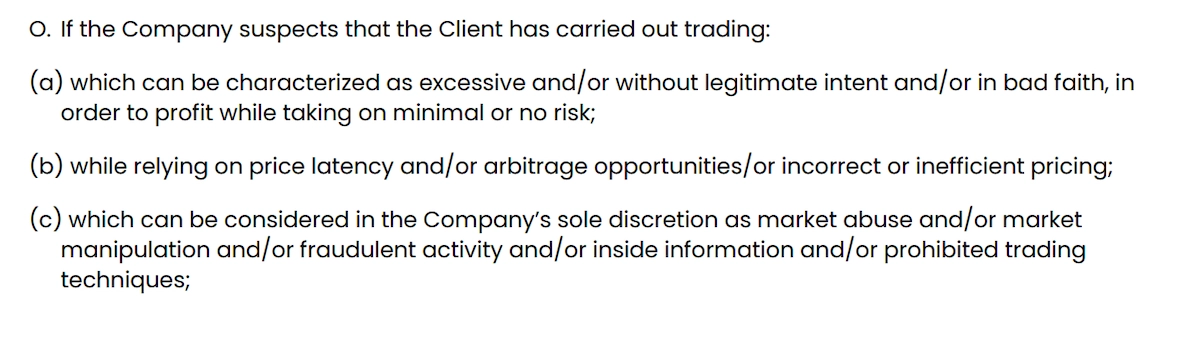
At Exness, only the desktop versions of MT4 and MT5 support EAs. When I checked, the Help Center confirmed that EAs do not work on mobile or web versions. The mobile FAQ also says the same.
This means you cannot use EAs on the browser-based Exness Terminal, which you access from the ‘Trading’ dropdown menu on an MT5 account in your Personal Area (my.exness.com).
« Make Full Width »| Where you trade | Runs bots? | What you need |
|---|---|---|
| MT5 desktop (Windows, macOS, Linux) | Yes | An EA built for MT5 (MQL5) |
| MT4 desktop | Yes | An EA built for MT4 (MQL4) |
| Exness VPS | Yes | MT4 or MT5, preinstalled on the server |
| Exness API | Vietnam and Thailand only | An Exness-platform account, not MetaTrader |
| Exness Terminal, Exness Trade app, MetaTrader WebTerminal, MT4/MT5 mobile | No | Manual trading only |
If you are buying a ready-made bot, check the file before you open an account. An MT4 EA will not work on MT5, and vice versa. Make sure your account’s platform matches the file type: use .ex4 or .mq4 for MT4, and .ex5 or .mq5 for MT5.
Which Bot Strategies Does Exness Ban?
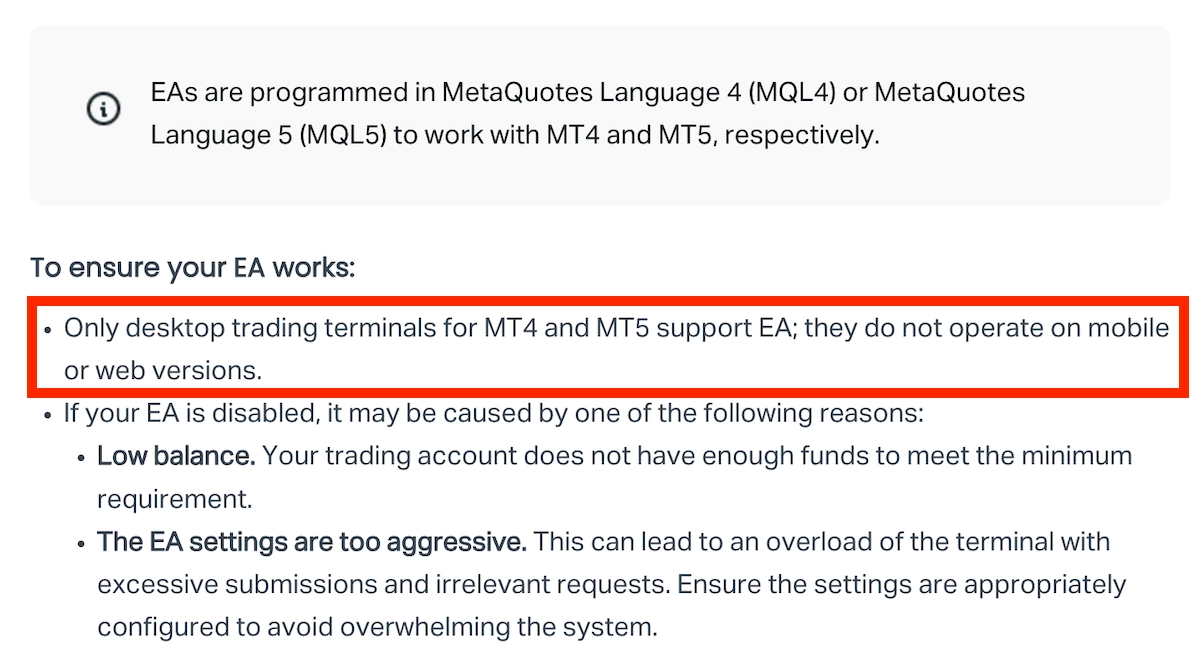
Exness allows bots, but its client agreement typically sets clear limits. For example, I reviewed the Exness (SC) Ltd client agreement. Exness can block accounts and cancel profits if it suspects trading based on price latency, arbitrage, or incorrect pricing. The same rules apply to trading strategies that try to profit with little or no market risk.
Another clause allows Exness to cancel profits it believes come from “algorithmic latency exploitation or automated system overload. “In simple terms, this targets bots that make money from flaws in Exness’ pricing instead of the market, such as latency arbitrage bots that use outdated quotes.
Two more clauses matter if you use bots:
- You cannot let anyone else trade your account. The agreement bans giving another person or company access, including sharing your login details. If a “managed bot” service asks for your MT5 trading password, using it would break the rules.
- You are responsible for any losses from using an EA. Exness does not accept liability for your use of a bot.
If you use a different Exness entity, make sure to review its specific agreement on the respective Exness legal documents page.
Can Exness Switch Your Bot Off?
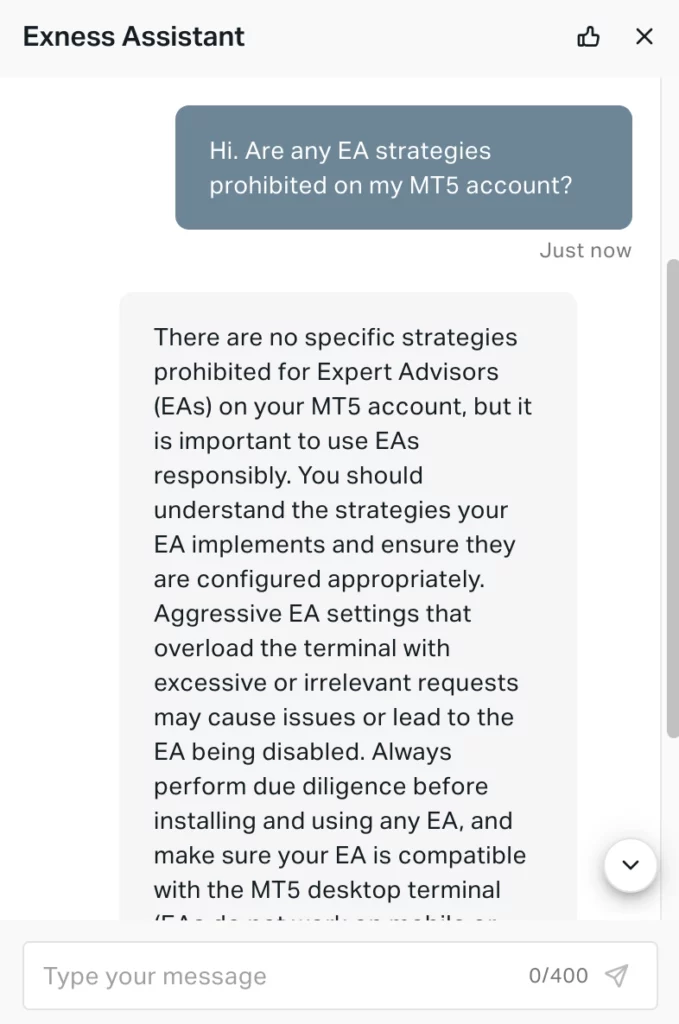
Exness may turn off an EA if your balance is too low or if its settings send too many requests to the terminal. If your bot stops trading, check your balance first before assuming there is a problem. If the EA still will not work, contact the ‘Support Hub’ in your Personal Area.
I also asked Exness’ support bot, which confirmed it is important to use EAs responsibly, as you can see below.
How To Run A Trading Bot On Exness
Here are the steps I followed on an Exness MT5 account. If you are new to MetaTrader, begin with my guide on connecting Exness to MT5.
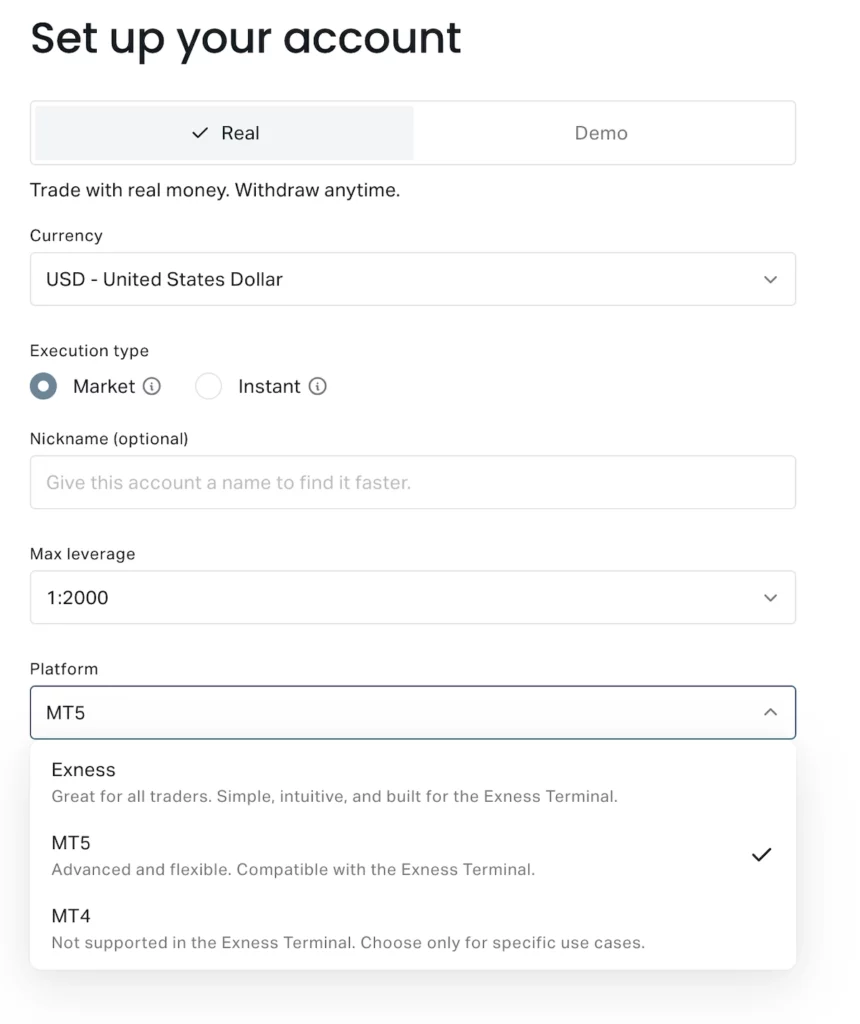
1. Open an MT5 or MT4 account. In your Personal Area, go to ‘Accounts’ , click ‘+ Open account’, choose your account type, and select MT5 or MT4 as the platform. In some regions, Exness offers accounts linked to its own platform, but they don’t support EAs.
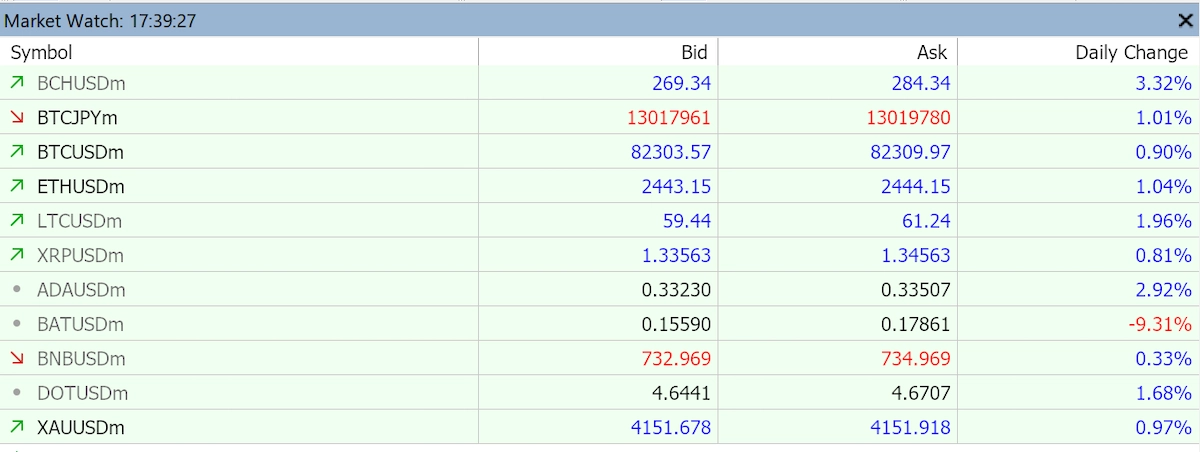
2. Make sure your EA matches Exness’ symbol names. Exness adds a suffix based on account type: gold is XAU/USD on Pro, XAU/USDm on Standard, and XAU/USDc on Standard Cent. On my Standard account, gold appeared as XAU/USDm in Market Watch. If your bot is set to plain XAU/USD, it may not work on a Standard account, so update the symbol in the EA’s settings.
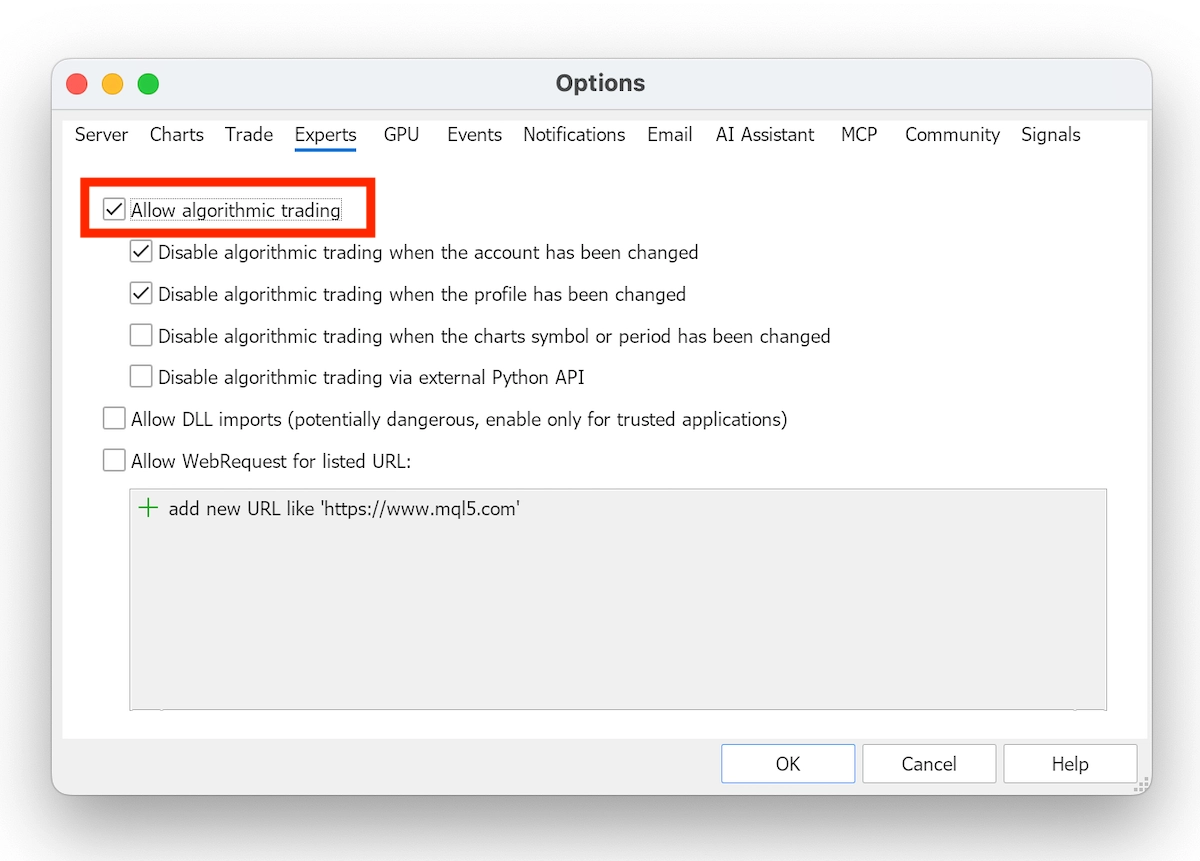
3. Install the EA and enable algorithmic trading. In MT5, click ‘File’, then ‘Open Data Folder’. Copy the EA into MQL5 >Experts (or MQL4 > Experts for MT4) and restart the platform. Next, go to ‘Tools’, then ‘Options’, then ‘Experts’, and check ‘Allow algorithmic trading’ (or ‘Allow automated trading’ on MT4). Only tick Allow DLL imports if you are sure your EA requires it.
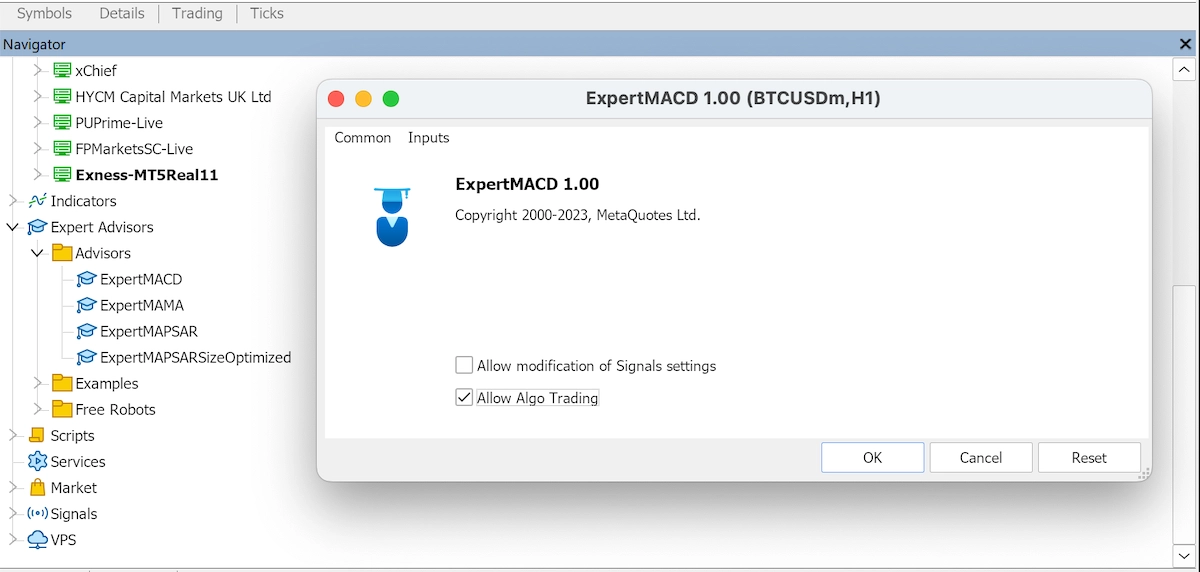
 4. Attach the EA and test it on a demo account. Drag the EA from the Navigator window onto a chart, check ‘Allow Algo Trading’ on the ‘Common’ tab (or ‘Allow live trading’ on MT4), and click ‘OK’. Make sure the ‘Algo Trading’ button on the toolbar (’AutoTrading’ on MT4) is turned on, as MetaTrader needs both settings enabled for the bot to trade.
I tested mine on an Exness demo account first, which I recommend before trading live. You can also download Exness’ tick history for comparison, but Exness considers it only an indicative reference.
Running Bots 24/7 On The Exness VPS
The free Exness VPS keeps MT4 or MT5 running even when your computer is off. The servers are located near Exness’ trading servers in cities like Amsterdam, Dubai, Seoul, Singapore, Miami, and Johannesburg.
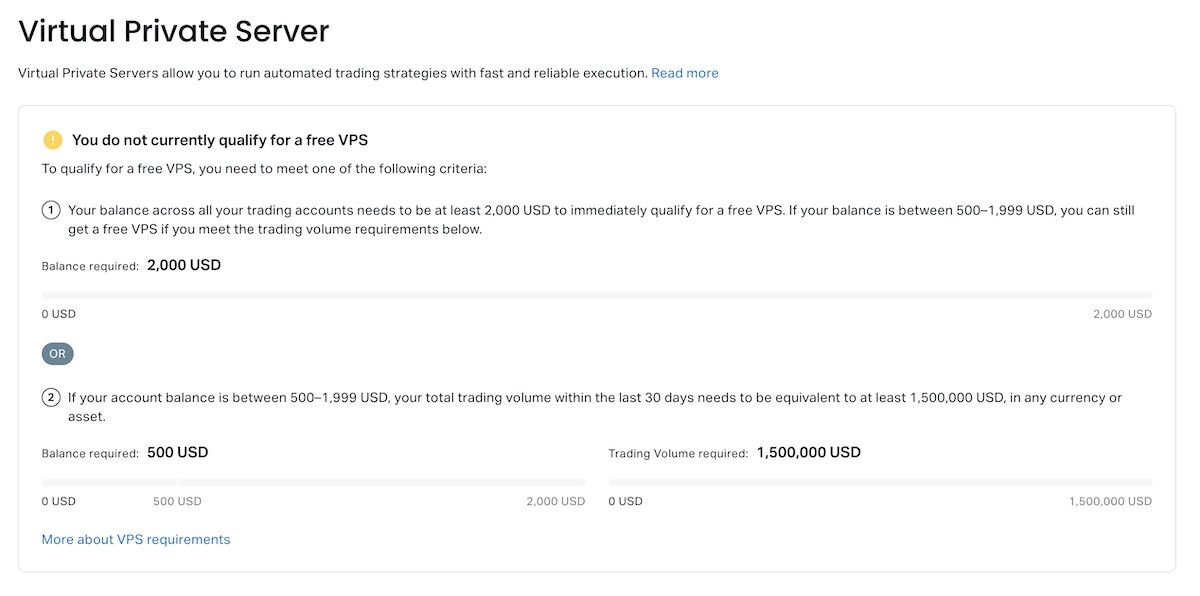
As explained in my full Exness review, you need either a $2,000 balance or $500 plus $1.5 million in monthly trading volume to qualify. You can see your exact requirements in the Personal Area under ‘Exness benefits’, then ‘Virtual Private Server’. That is where I checked mine.
The volume target is not as high as it seems. Exness counts the contract size of a trade both when you open and close it. So, $1.5 million is about 6 to 7 standard lots of EUR/USD, opened and closed within 30 days, depending on the exchange rate.
The most important rule is the keep-alive requirement. You need to log in and trade from the VPS within five days of getting it, then at least once every 30 days, and reach a set trading volume over 30, 90, or 180 days. Pending orders that never trigger do not count. If you break any of these rules, Exness will delete the VPS and everything on it, including your EAs, so always keep copies of your EA files on your own computer.
The VPS desktop also includes a free installer for FX Blue EAs. This includes a trade copier that can duplicate orders between two MetaTrader terminals on the same server.
Bottom Line
After setting everything up myself, I think Exness is a good choice for EA traders who follow its rules. Use your bot on desktop MT4, MT5, or the free VPS, and always check the symbol suffix before trading live. Remember, though, do not share your login with a bot service or use bots designed to exploit Exness prices.
If you are testing an EA, check the cost of each trade first, i.e. Exness spreads.