

How To Connect Exness To MT5
Connecting your Exness account to MetaTrader 5 (MT5) takes about five minutes once you know where to find your login details. Most people get stuck not on the download but on mixing up the server name and password, so we’ll highlight those as we go in this guide.
 Written By
Christian Harris
Christian is a seasoned analyst, leveraging his expertise in stocks, forex, and crypto to evaluate brokers worldwide. With hands-on trading experience and a strong focus on risk management, he helps traders find reliable platforms. Christian's work for BrokerListings.com has been cited in the Financial Times.
Christian Harris Profile Page Fact Checked By
Tobias Robinson
Tobias is committed to helping traders find the right brokerage for their needs. He has tested 200+ brokers, spent 2,600+ hours using different platforms, and placed 2,100+ trades.
Tobias Robinson Profile Page Edited By
James Barra
James is an experienced broker analyst with a background in financial services. He has spent 2,500+ hours testing brokers, used 35+ different platforms and apps, audited 120+ broker T&Cs, and verified 300+ regulatory licenses. James has also been on US and UK TV, and been a guest on finance podcasts, discussing reports conducted by BrokerListings.com and sharing his expertise.
James Barra Profile PageOctober 7, 2026
Step-By-Step
Here’s the step-by-step process we’ve used on both desktop and mobile to connect an Exness trading account to MT5:
- First, open an MT5 account with Exness. Log in to your Personal Area, click Open New Account, select MT5 as the platform, and choose your account type (Standard, Cent, Pro, Raw Spread, or Zero). MT4 accounts don’t work on MT5, and vice versa, so double-check the platform before you continue.
- Copy your three credentials. In the Personal Area, go to My Accounts, note your MT5 login number and the server, and set or reset your trading password. Remember, your trading password is different from your Personal Area password. Using the wrong password is the most common reason for login issues.
- Download MT5 from your Personal Area link, the MetaQuotes website, or your phone’s app store. Exness requires MT5 Build 4755 or newer; update your app if you have an older version. You can skip this stage if you plan to use the web-based MT5 platform.
- To log in on desktop, open MT5, click File, then Login to Trade Account. Enter your login number, trading password, and server (for example, ExnessKE-MT5Real4 as you can see in the screenshot below), then click OK. If you don’t see your server, go to File, select Open an Account, search for Exness Technologies Ltd, choose your server, and complete the process.
- To log in on mobile, open the MT5 app, tap the plus sign to add an account, search for Exness, select your server, enter your login and password, and sign in.
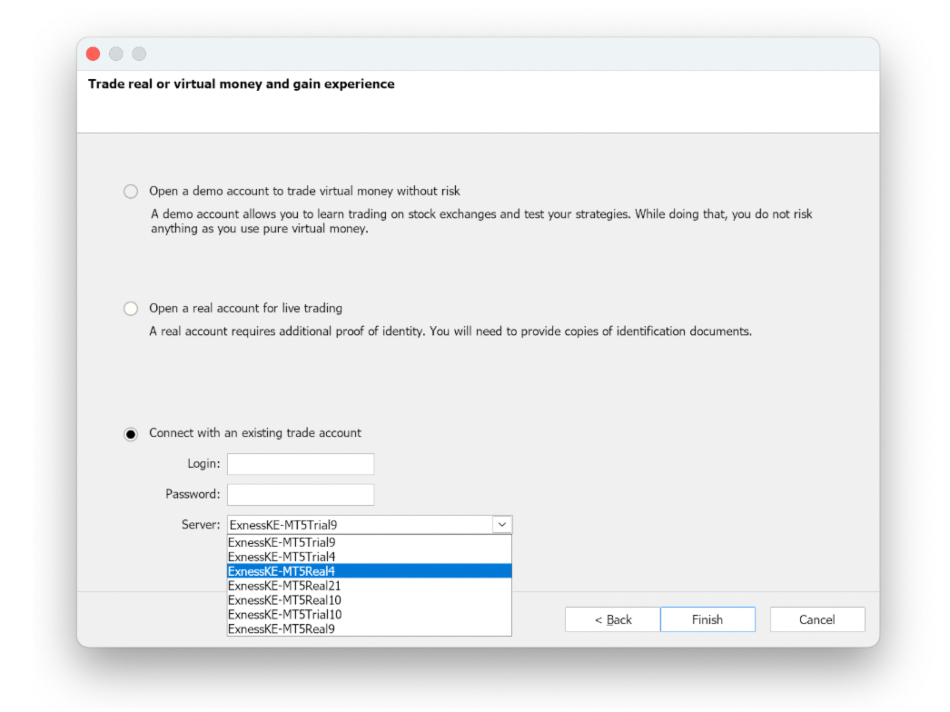
You’ll know it worked if you hear a confirmation sound and see your live account balance in the toolbox. If nothing appears, it’s usually because of one of two things: using the wrong server (make sure to copy it exactly from your Personal Area, as names like Exness-MT5Real and Exness-MT5Trial are easy to mix up) or entering your Personal Area password instead of your trading password.
When we first mistyped the server, MT5 just showed ‘no connection’ without an error, so now we always paste the server name instead of typing it.
Tips For Maximizing MT5 With Exness
Here are two extra tips once you’re connected:
- Exness gives eligible accounts a free VPS, usually after you’ve funded and traded a certain amount. This lets your Expert Advisor (EA) keep running even when your computer is off and reduces latency to the trade server.
- If you right-click a chart and enable one-click trading, you can place market orders directly from the price panel, which is helpful when you need to act quickly. You can check out our guide on how to trade at Exness.