 Top Lists for USA
How To Connect FxPro To MT5
It takes only a few minutes to connect your FxPro account to MetaTrader 5 after you open an MT5 account in FxPro Direct, FxPro’s client area. Don’t choose the wrong one of the three live servers, and avoid clicking the blue ‘FxPro WebTerminal’ button, since that opens FxPro’s own platform instead of MT5.
 Written By
Christian Harris
Christian is a seasoned analyst, leveraging his expertise in stocks, forex, and crypto to evaluate brokers worldwide. With hands-on trading experience and a strong focus on risk management, he helps traders find reliable platforms. Christian's work for BrokerListings.com has been cited in the Financial Times.
Christian Harris Profile Page Fact Checked By
Tobias Robinson
Tobias is committed to helping traders find the right brokerage for their needs. He has tested 200+ brokers, spent 2,600+ hours using different platforms, and placed 2,100+ trades.
Tobias Robinson Profile Page Edited By
James Barra
James is an experienced broker analyst with a background in financial services. He has spent 2,500+ hours testing brokers, used 35+ different platforms and apps, audited 120+ broker T&Cs, and verified 300+ regulatory licenses. James has also been on US and UK TV, and been a guest on finance podcasts, discussing reports conducted by BrokerListings.com and sharing his expertise.
James Barra Profile PageNovember 16, 2026
Step-By-Step Instructions
Here’s how you can connect your FxPro account to MT5 on desktop, mobile, or the web. Since FxPro operates in different regions, some menus and limits may look different depending on your location.
1. Start By Finding Your MT5 Login Details
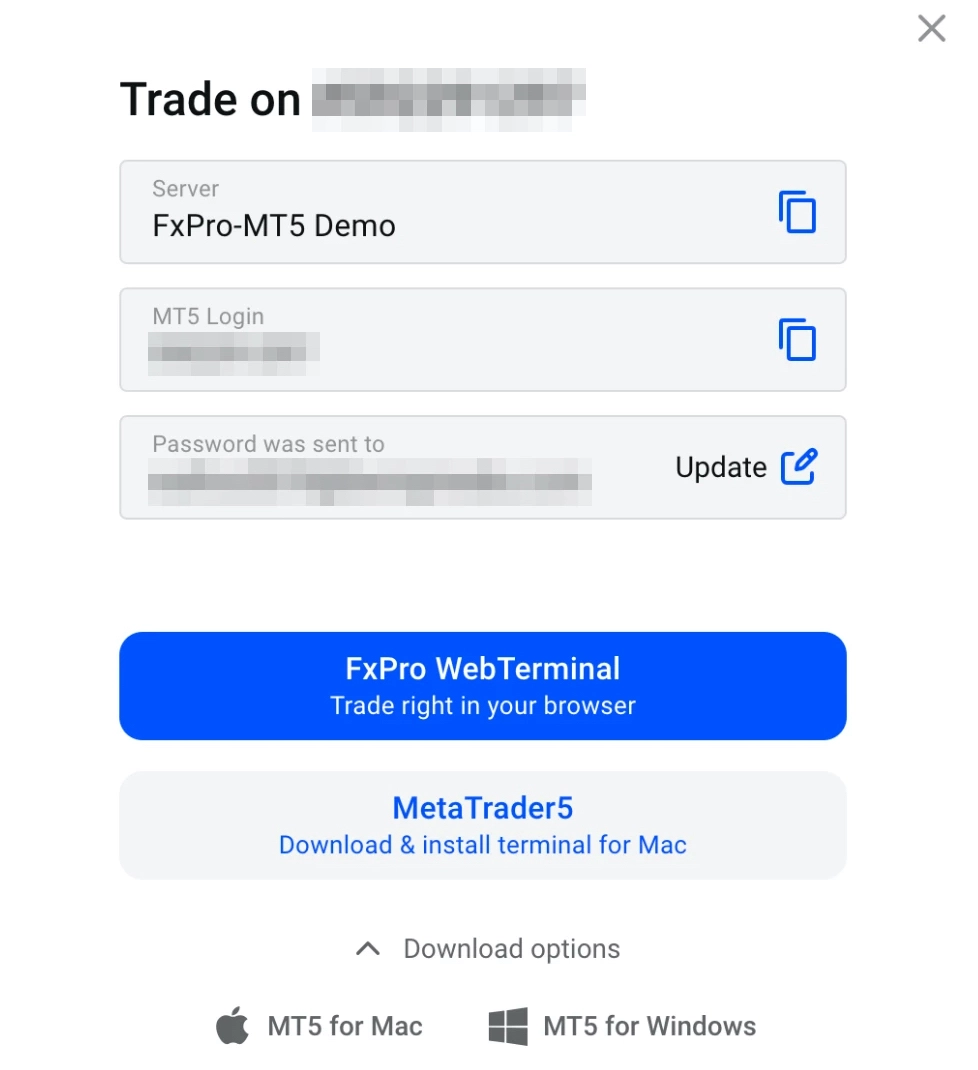
In FxPro Direct, go to ‘Your trading accounts’, choose either ‘Real account’ or ‘Demo accounts’, and click ‘Trade’ next to your MT5 account. You’ll see your ‘Server’ and ‘MT5 Login’, each with a copy button.
FxPro should have emailed your MT5 password when you created your account, as your FxPro Direct password won’t work in MT5. If you forgot your MT5 password, click ‘Update’ next to the email. Resetting it will email you a new temporary password.
If your live account isn’t funded yet, the ‘Trade’ button might just show “The account balance is zero. To start trading, you should fund this account”. In that case, use the login details from your account-opening email until you add funds.
2. Download MT5
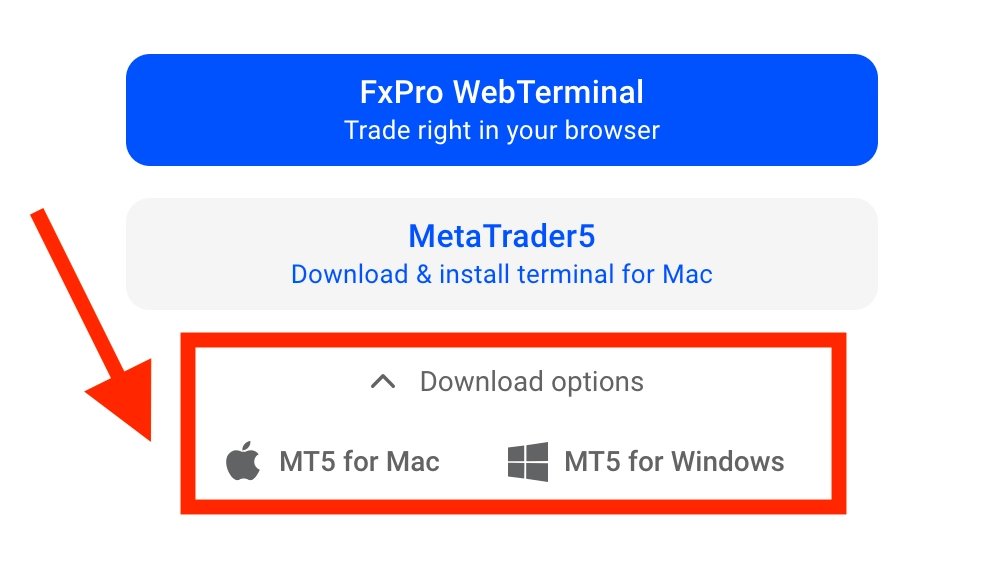
Click ‘Download options’ in the same window, or use the links on FxPro’s MT5 page. The Windows button downloads FxPro’s installer, which should show FxPro’s servers right away. The Mac button downloads a generic package, so FxPro’s servers might not appear at first.
If you’re using a phone, you can also download MT5 from the App Store or Google Play. You can skip this if you want to use MT5’s WebTrader instead.
3. Log In On Desktop
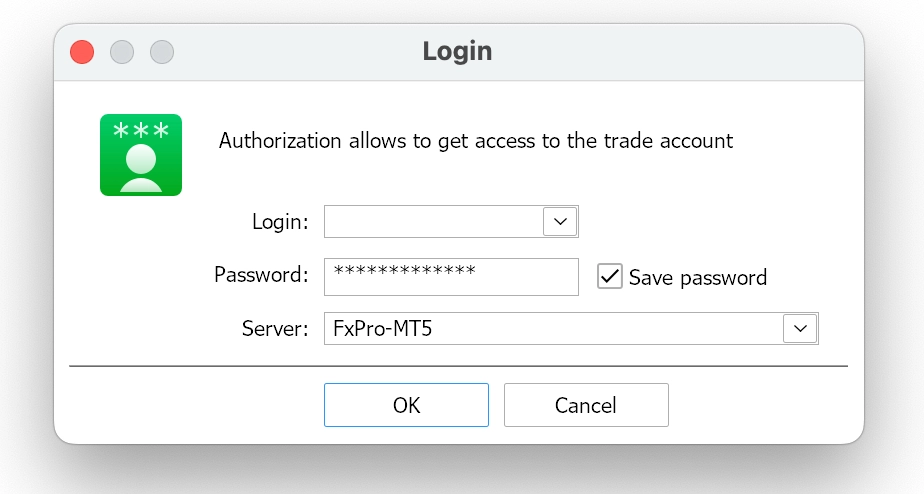
Open MT5, click ‘File’, and select ‘Login to Trade Account’. Enter your MT5 password, choose the exact server from FxPro Direct (‘FxPro-MT5’, ‘FxPro-MT5 Live02’, ‘FxPro-MT5 Live03′, or ‘FxPro-MT5 Demo’), and check ‘Save password’.
If you don’t see any FxPro servers, click ‘File’, then ‘Open an Account’, search for FxPro, and select the option to connect to an existing account.
4. Log In On Mobile
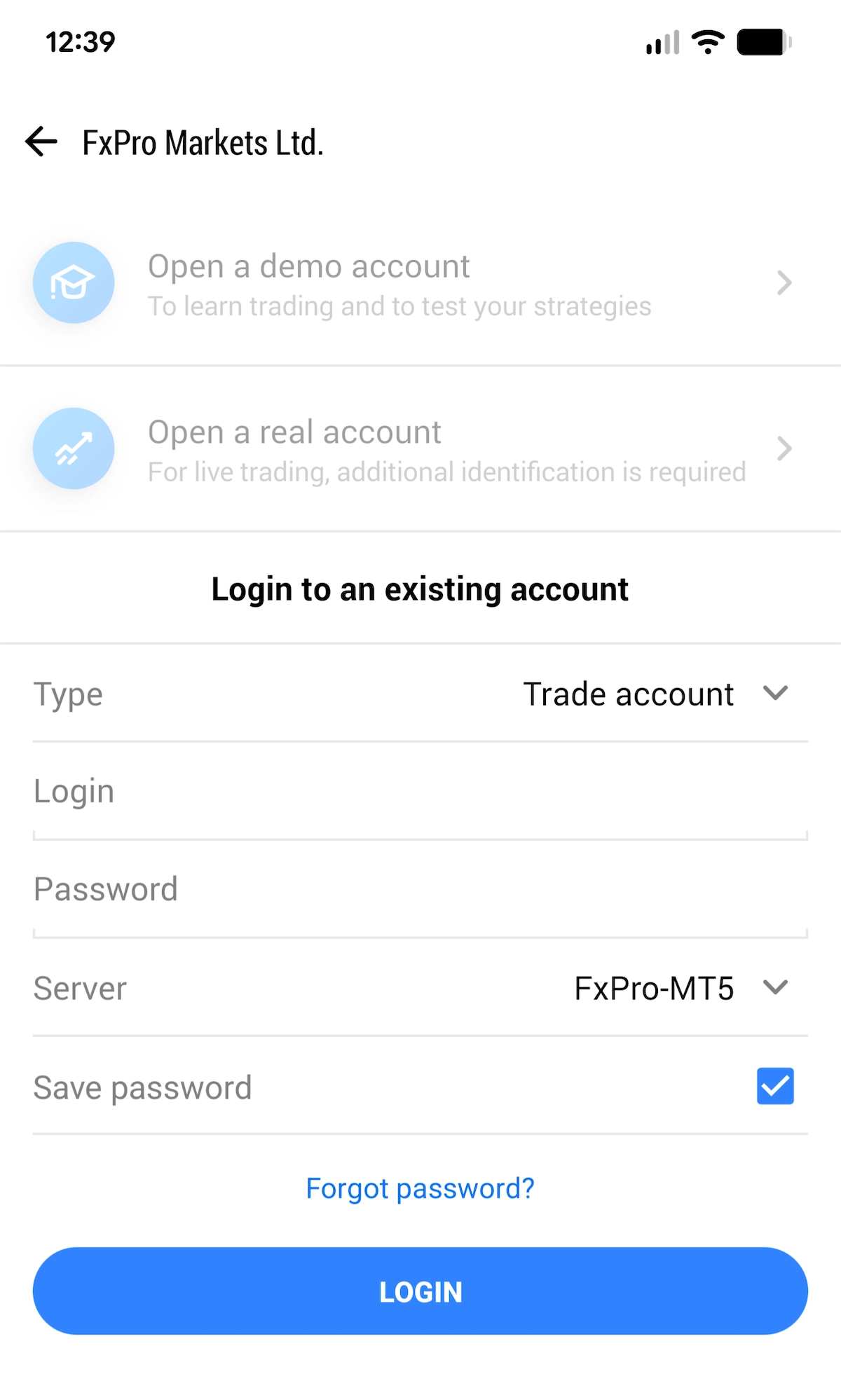
Open the MT5 app and close any pop-ups. Click the blue ‘Add Trading Account’ button. Search for ‘FxPro’, select the FxPro company you registered with (i.e., your jurisdiction), select your server from the drop-down menu, and enter your login and password.
If you already use the app for another account, tap ‘Settings’ and then ‘New Account’ on iPhone, or go to ‘Manage accounts’ and tap ‘+’ on Android.
5. Log In Using Your Browser
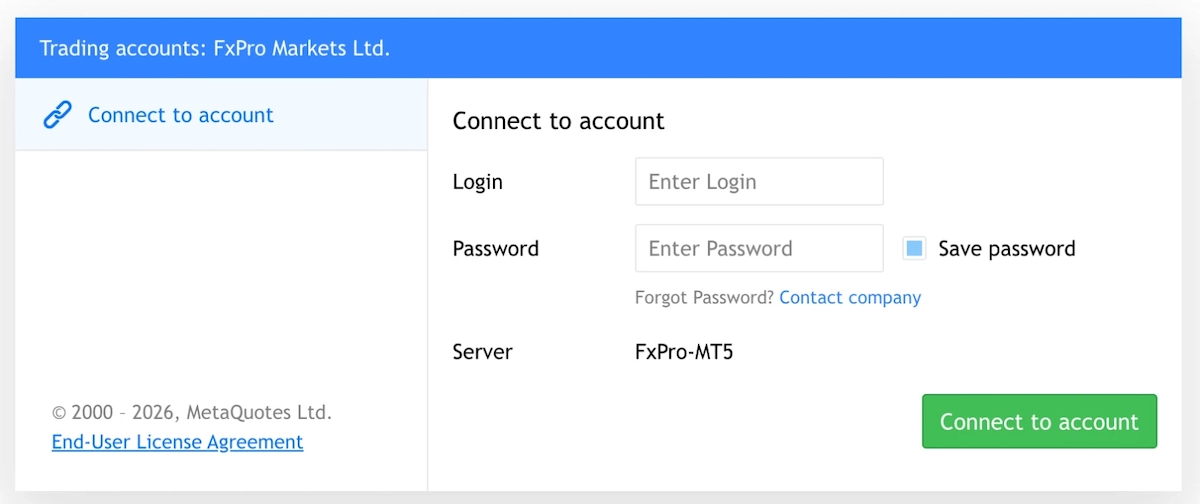
Each MT5 WebTrader button on FxPro’s MT5 page is linked to a specific server. For example, ‘MT5 Live 1’ is FxPro-MT5, ‘MT5 Live 2’ is Live02, ‘MT5 Live 3’ is Live03, and ‘MT5 Demo’ is the demo server.
Open the button that matches your server, enter your login and password, and click ‘Connect to account’.
Common FxPro MT5 Connection Problems And Fixes
| Problem | Likely Cause | Fix |
|---|---|---|
| “Invalid account” | Wrong live server, or your FxPro Direct password | Copy the server and login from the ‘Trade’ window, and use your emailed MT5 password |
| “Invalid account” on an old login | FxPro may disable live accounts after 3 months of inactivity, and demos after 180 days, or 60 on some regional sites | Email FxPro or use Live Chat to reactivate a live account, or open a new demo |
| “No connection” | FxPro’s server isn’t loaded, for example after the Mac installer, or a firewall is blocking MT5 | Go to ‘File’, then ‘Open an Account’, and search for FxPro; try another network |
| Balance shows “0.00” | Your deposit is still in your FxPro Wallet | Click ‘Transfer’ in FxPro Direct and move it to your MT5 account |
| ‘New Order’ button greyed out | Read-only investor password, or an unfunded live account marked ‘Not Activated’ | Log in with your master password and fund the account |
| Shares missing | Market Watch only shows some symbols | Right-click ‘Market Watch’ and select ‘Show All’ |
Tips For Maximizing MT5 With FxPro
I’ve used MT5 with FxPro for years. Here are some top tips I think you should find helpful:
- Choose hedging unless you specifically want netting. FxPro lets you pick either option for an MT5 account. With netting, you can only hold one position per instrument, so if you sell EUR/USD while holding a buy, it reduces or closes your buy instead of opening a new trade. If you want to switch later, you’ll need to open a new account, but FxPro allows up to 5 trading accounts,, so you can keep both types if you want.
- Change your emailed password after you log in. In MT5 desktop, go to ‘Tools’, then ‘Options’, open the ‘Server’ tab, and click the ‘Change’ button next to the current password. You can also set an investor password in the same pop-up window, which lets someone like a mentor watch your trades without being able to place or close any.
- Make sure your MT5 account currency matches your Wallet. FxPro offers MT5 accounts in several major currencies, and moving money between your Wallet and an account in a different currency uses a live conversion rate. Keeping your deposits, Wallet, and MT5 account in the same currency helps you avoid conversion fees.
- Use the desktop version of MT5 for charting. FxPro’s WebTrader offers 9 timeframes and 30 indicators, while the desktop version has 21 timeframes and over 38 indicators. For example, you won’t find 2-hour or 8-hour charts in your browser.
- Plan for a VPS if you use EAs. A VPS keeps your Expert Advisor running even when your computer is off. FxPro’s VPS costs $30 a month ($360 a year), or the equivalent in your Wallet currency. It’s free for VIP clients, who usually deposit about $50,000, and Elite clients can also apply for it at no cost.
Not set on using FxPro? Check out our list of best MT5 brokers.