 Top Lists for USA
How To Trade On FxPro
This guide shows you how to trade on FxPro, step by step. You’ll see how to open and verify your account, use a free demo if you’re a beginner, add money, make your first trade, and withdraw your funds. It also explains how the FxPro Wallet works, so your deposit is ready to use.
 Written By
Christian Harris
Christian is a seasoned analyst, leveraging his expertise in stocks, forex, and crypto to evaluate brokers worldwide. With hands-on trading experience and a strong focus on risk management, he helps traders find reliable platforms. Christian's work for BrokerListings.com has been cited in the Financial Times.
Christian Harris Profile Page Fact Checked By
Tobias Robinson
Tobias is committed to helping traders find the right brokerage for their needs. He has tested 200+ brokers, spent 2,600+ hours using different platforms, and placed 2,100+ trades.
Tobias Robinson Profile Page Edited By
James Barra
James is an experienced broker analyst with a background in financial services. He has spent 2,500+ hours testing brokers, used 35+ different platforms and apps, audited 120+ broker T&Cs, and verified 300+ regulatory licenses. James has also been on US and UK TV, and been a guest on finance podcasts, discussing reports conducted by BrokerListings.com and sharing his expertise.
James Barra Profile PageNovember 12, 2026
Unsure about signing up? For FxPro’s fees, regulation, accounts and more, see our full FxPro review.
Step-By-Step Instructions
In this guide, I use FxPro WebTrader, FxPro’s browser-based trading platform, with the Standard account. The steps to set up your account are the same on other FxPro platforms, like the FxPro app, MT4, MT5, cTrader, and TradingView, but the trading screens may look different.
Step 1: Register
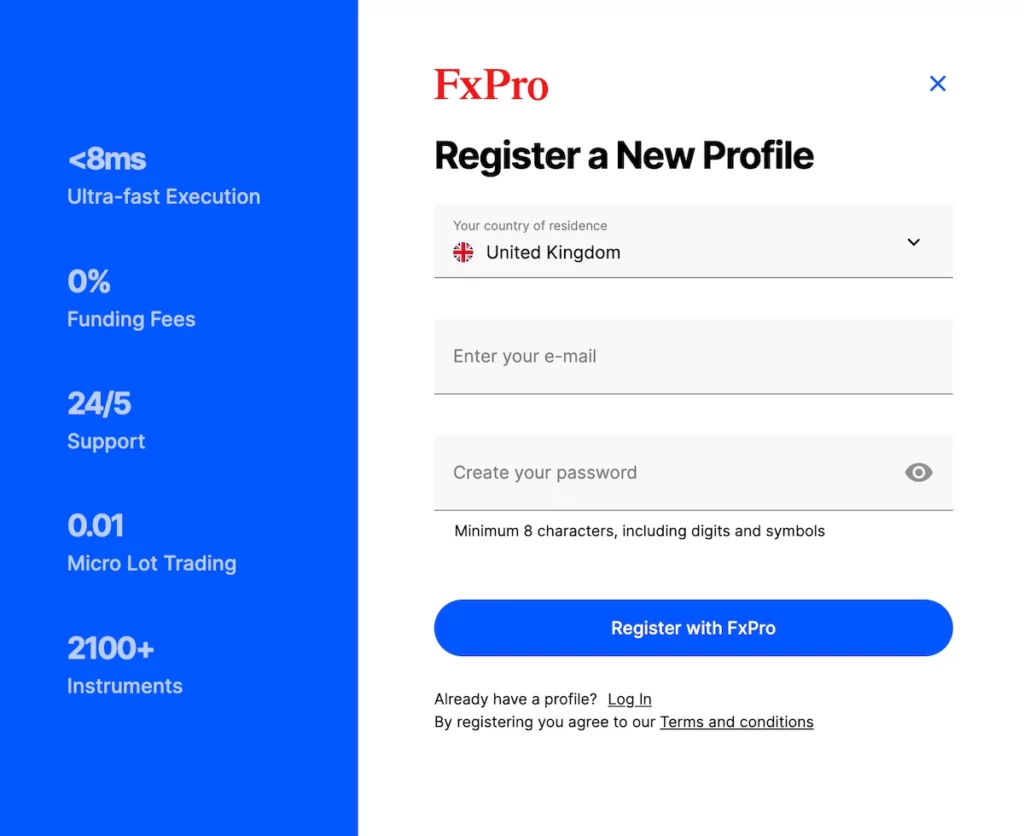
Click ‘Register’ on ‘fxpro.com’ or in the FxPro mobile app. Enter your name, country, email, and set a password. FxPro will then ask for your date of birth, address, job, financial situation, and trading experience, and then give you a short quiz onhow markets work.
Step 2: Verify Your Identity
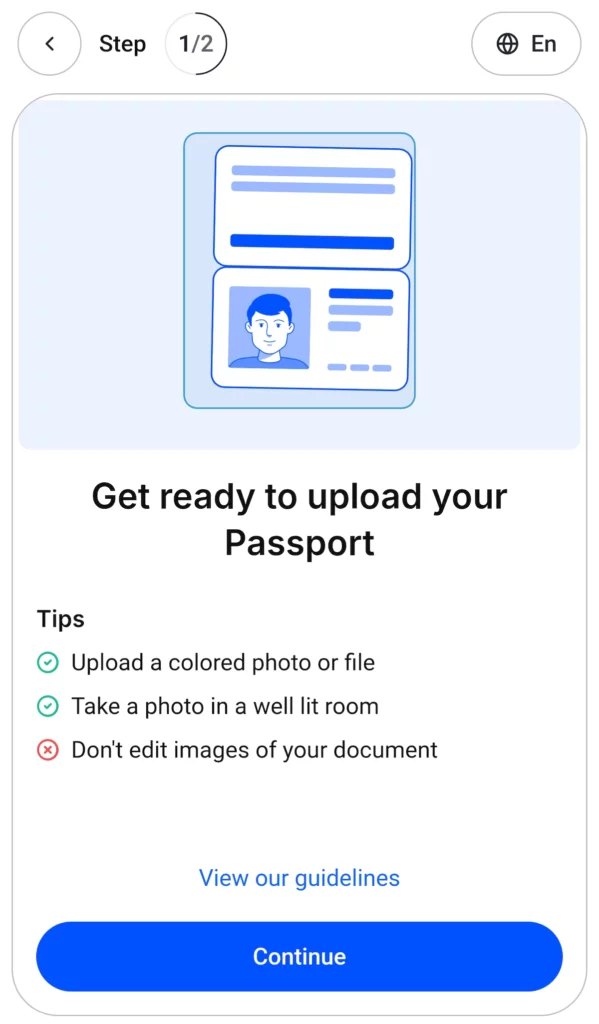
After registering, you’ll be taken to a verification page, which you must complete on your mobile phone before you can trade with real money. I found the process quick and easy on a phone because you can use its camera to take a selfie or photos of your documents. From scanning the QR code to finish took me just a few minutes.
You will need to upload a photo of your passport, ID card, residence permit, or driver’s license (provisional also supported). You might also need to provide proof of address dated within the last six months.
Do not email your documents, because FxPro will not process them.
Step 3: Practice With A Demo Account
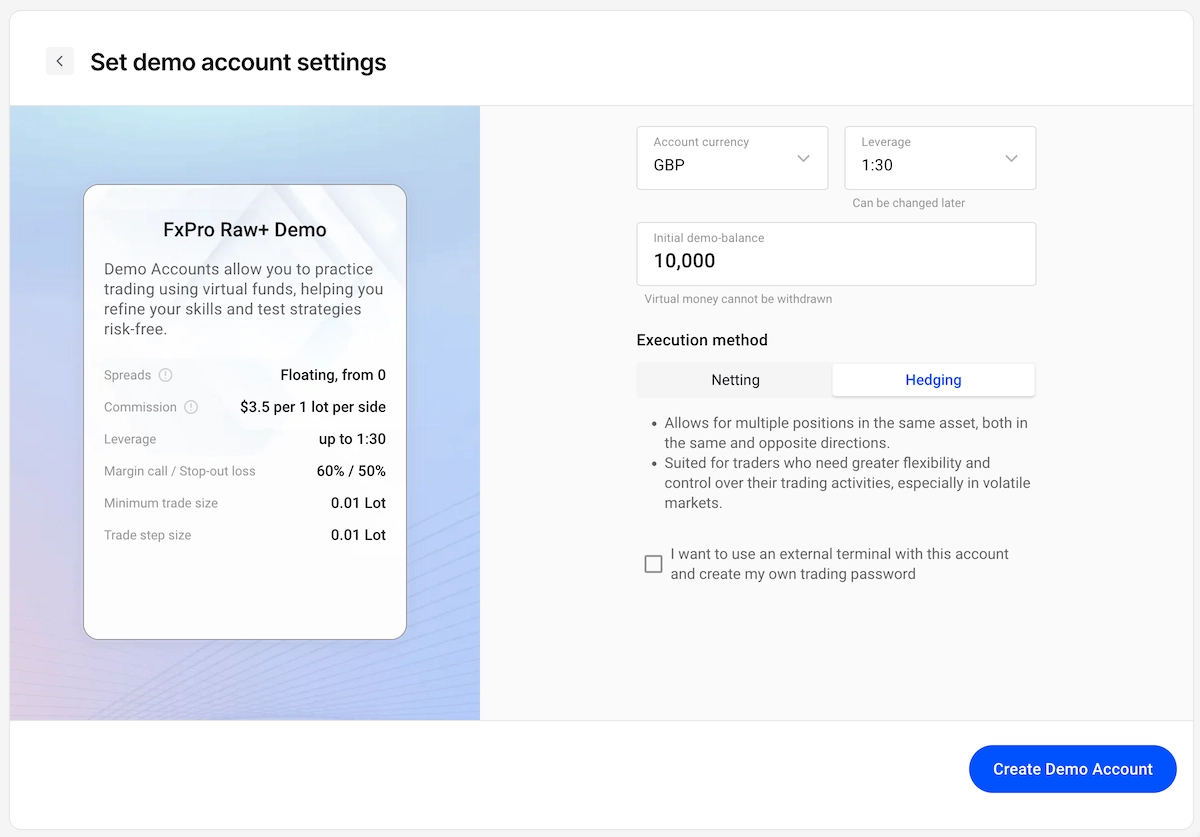
You do not need documents or a deposit for this. Open the ‘Accounts’ page in the FxPro Direct client dashboard, navigate to the ‘Your trading accounts’ section, toggle to the ‘Demo accounts’ tab, and click either the ‘+ Create Account’ link or ‘Create demo account’ button. Then select your preferred platform (MT4, MT5, or cTrader), choose how much virtual money to use in its base currency, and set your leverage.
You can also choose between two execution types: Netting (all positions for the same instrument are combined into one net position) and Hedging (allows for multiple positions in the same asset, both in the same and opposite directions).
Demo prices may differ from live prices during news or when the market opens, so use the demo only for practice.
Step 4: Deposit Real Money
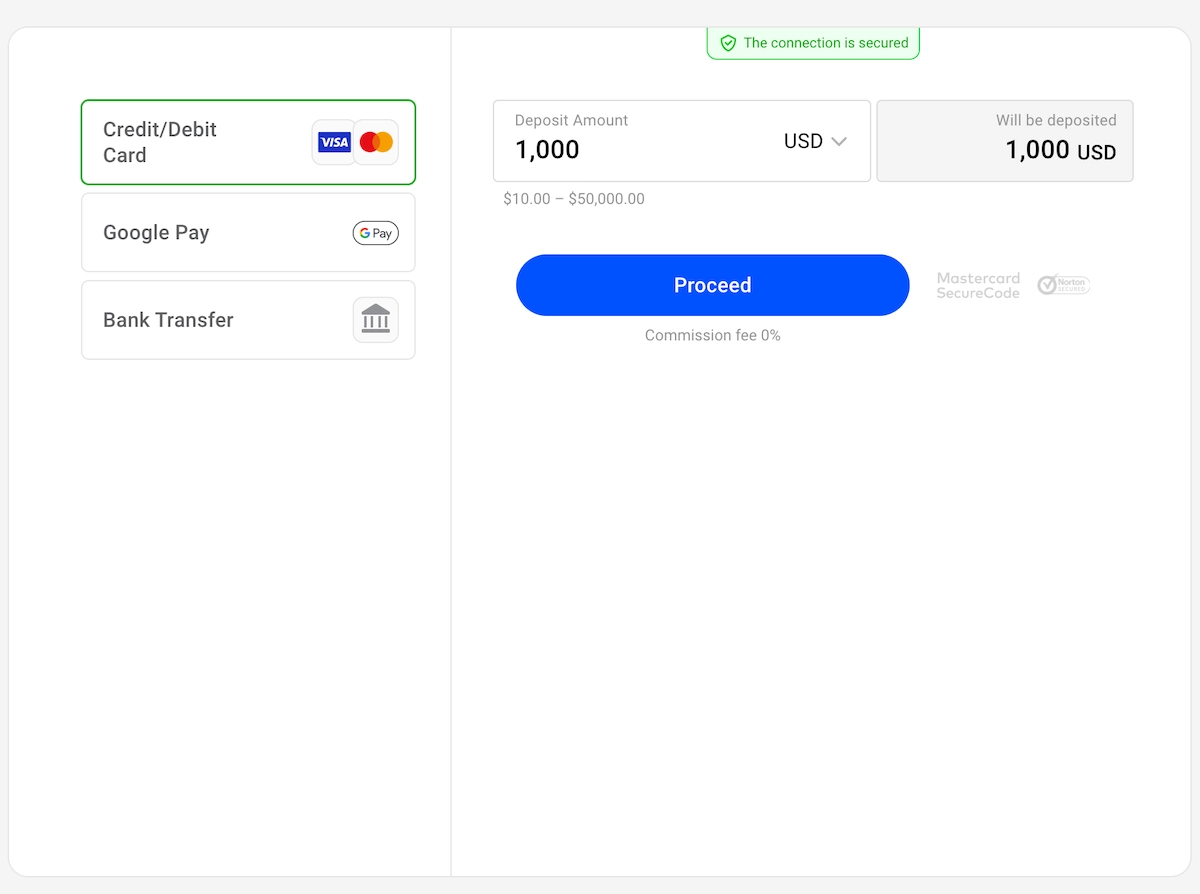
Once you’re ready to start trading with real money, you’ll need to open ‘Wallet’ in FxPro Direct and click ‘Fund’. Choose a payment method, enter the amount, choose the currency, and follow the prompts. Alternatively, you can send money straight to a trading account instead of your Wallet, which lets you skip step 5. Only do this with money you plan to trade.
FxPro officially recommends an initial deposit of $1,000, but the Standard account has no fixed minimum deposit. Payment methods may have their own requirements, so you will probably need to deposit at least $100. From my experience, credit and debit card payments are almost instant, and bank transfers can take three to five business days.
Step 5: Transfer Money Into Your Trading Account
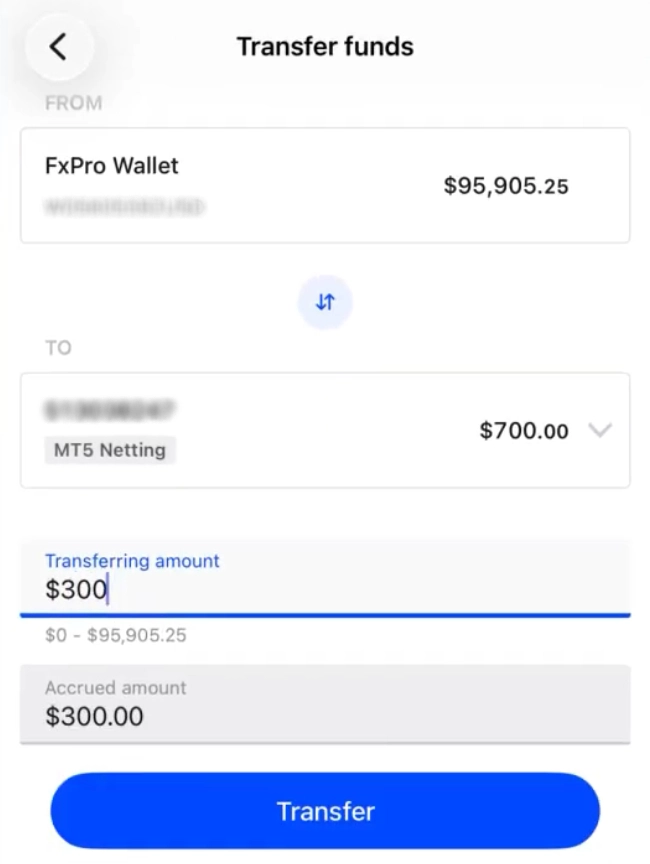
If you added money to your FxPro Wallet, you need to transfer it to a live trading account in order to trade it. In your FxPro Wallet, click ‘Transfer’. Select your Wallet as the source and your trading account as the target, then enter the amount. I’ve found that transfers happen instantly.
If your Wallet and trading accounts use different currencies, FxPro will show you the live conversion rate first.
Step 6: Place Your First Trade
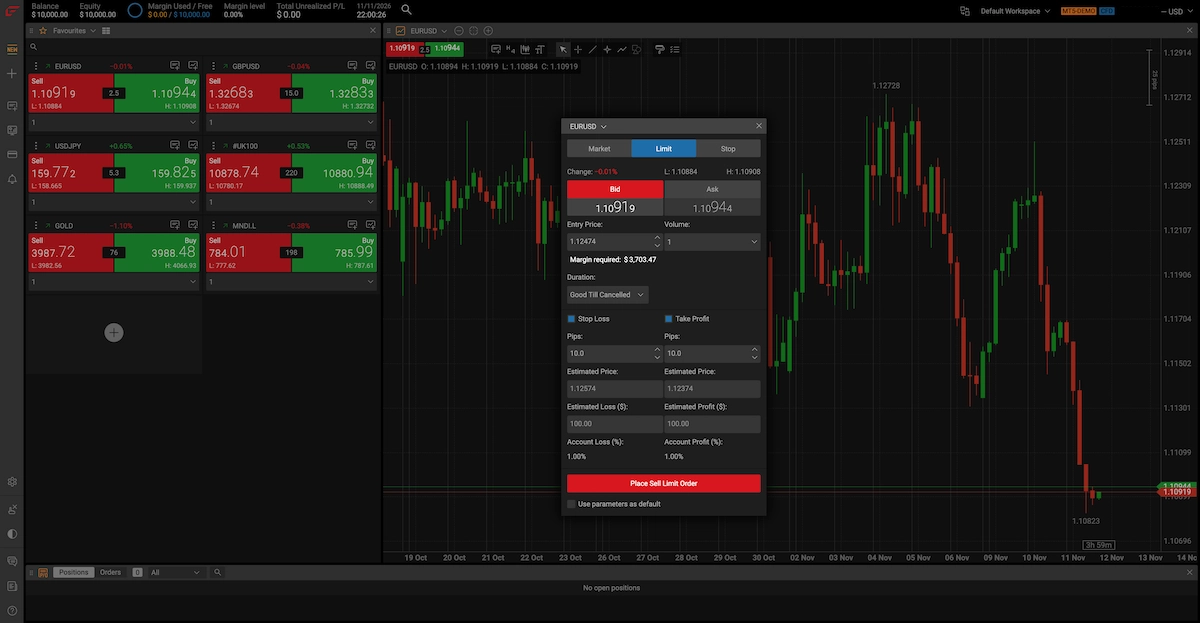
Go to the ‘Your trading accounts’ section in FxPro Direct and click the ‘Trade’ link next to your account number. Select ‘FxPro WebTerminal’ to trade in your browser without having to download any software. Find a market like EUR/USD, right- click on the chart and select ‘Create New Order’.
Choose ‘Buy’ (Ask) if you think the price will go up, or ‘Sell’ (Bid) if you think it will go down, and set your trade size (volume). Add a stop loss (SL) to close the trade at your chosen loss limit, and a take profit (TP) to close it at your profit target. Alternatively, you can press the red price button at the top-left of the chart to open a Sell position, and the green price button to open a Buy position.
On the Standard account, both must be at least 1.0 pip from the current price on most major currency pairs. A pip is asmall price step. For example, if EUR/USD moves from 1.1050 to 1.1051, that is one pip.
Step 7: Close The Trade
Find your trade in the Positions/Orders widget at the bottom of the WebTrader platform and click the ‘Close’ button. To close all open positions, click the ‘Close All’ button. A trade will also close automatically if it hits your SL or TP.
If your losses reach the stop-out margin level, FxPro will automatically close trades.

Step 8: Withdraw Money
You cannot withdraw directly from an active trading account. Click ‘Transfer’ in your FxPro Wallet and move your funds from your trading account into your Wallet. You can then select ‘Withdrawal’. Due to anti-money laundering (AML) guidelines, you need to use the same method you used to deposit until that deposit is fully refunded or its refund limit expires. I’ve found that FxPro usually processes withdrawals within a few hours during working hours.
Requests made outside working hours are handled the next business day, but your bank or payment provider may take extra time.

Common Problems And Fixes
| Problem | Likely cause | Fix |
|---|---|---|
| You can’t deposit | Your account isn’t verified yet | Upload your ID in FxPro Direct or the app, not by email |
| Your trading account shows ‘0.00’ after a deposit | The money went to your FxPro Wallet | Click ‘Transfer’ and move it across |
| The withdrawal method you want isn’t available | You deposited with a different method | Withdraw to your original deposit method until that deposit is refunded or its refund limit expires |
| A weekend transfer won’t go through | That trading account has open trades | Close those trades first |
| Your demo account has gone | FxPro deactivates demos after a set number of days | Open a new one from the Accounts page |
| Your SL or TP is rejected | It’s too close to the current price | Set it at least 1 pip away on major currency pairs |
| Shares aren’t in your market list | On the Standard account, shares need MT5 | Open an MT5 account in FxPro Direct |
Tips For Trading On FxPro
After you try a demo trade or two, keep these three tips in mind:
- Start with the smallest trade size. FxPro uses lots to measure trade size. One lot of EUR/USD is €100,000, and one lot of gold is 100 ounces. The smallest size is 0.01 lots, which is €1,000 of EUR/USD or 1 ounce of gold. If you type 1 instead of 0.01, your trade will be 100 times bigger.
- Work out the cost before you click. The gap between the Buy and Sell price is called the spread, and on the Standard account it starts at 1.2 pips on major currency pairs. On 0.01 lots of EUR/USD, a pip is worth $0.10, so even the lowest spread costs about $0.12 per trade, or $12 on 1 lot. If you hold a trade overnight, you may also pay a swap, or overnight charge.
- Keep extra money in your Wallet. Wallet money is not used in trading, so it is protected from market losses. Move only what you plan to trade. But remember that FxPro does not count Wallet money when monitoring your margin stop-out level, so a smaller trading balance can be closed out sooner. Keep your trade sizes small to match