 Top Lists for USA
How To Connect PU Prime To MT5
PU Prime supports MetaTrader 5 across Windows, Mac, mobile and web, and connecting is straightforward once you’ve created an MT5-compatible trading account. The one detail people trip over is the login credentials: your MT5 number and password are not the same as your Client Portal login.
 Written By
Christian Harris
Christian is a seasoned analyst, leveraging his expertise in stocks, forex, and crypto to evaluate brokers worldwide. With hands-on trading experience and a strong focus on risk management, he helps traders find reliable platforms. Christian's work for BrokerListings.com has been cited in the Financial Times.
Christian Harris Profile Page Fact Checked By
Tobias Robinson
Tobias is committed to helping traders find the right brokerage for their needs. He has tested 200+ brokers, spent 2,600+ hours using different platforms, and placed 2,100+ trades.
Tobias Robinson Profile Page Edited By
James Barra
James is an experienced broker analyst with a background in financial services. He has spent 2,500+ hours testing brokers, used 35+ different platforms and apps, audited 120+ broker T&Cs, and verified 300+ regulatory licenses. James has also been on US and UK TV, and been a guest on finance podcasts, discussing reports conducted by BrokerListings.com and sharing his expertise.
James Barra Profile PageOctober 7, 2026
When you open a PU trading account in the Client Portal, the broker emails you an MT5 login ID, a password, and the exact server name to use. Keep that email handy because the server name is the piece you’ll need to select during setup.
Connect MT5 On Desktop
- Download and install MetaTrader 5 from PU Prime’s platforms page (or from MetaQuotes).
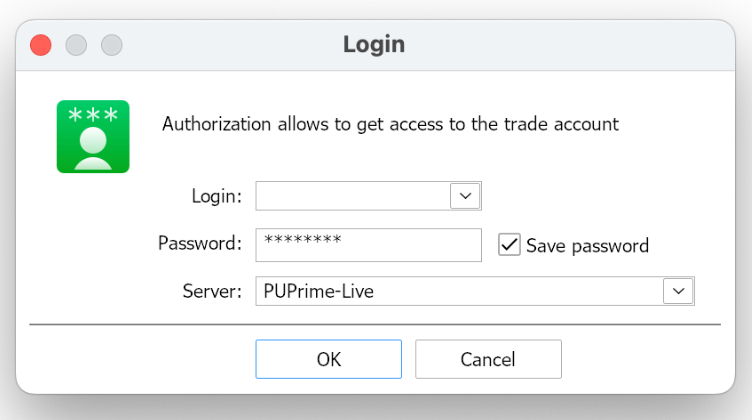
- Open MT5 and go to File > Login to Trade Account.
- Type the server name from your account-opening email into the search box and select it. PU Prime runs separate live and demo servers, so match the one tied to your account.
- Enter your MT5 login ID and password.
- Click Login. A successful connection shows a live price feed and your account balance in the Navigator panel.
Connect MT5 On The Web
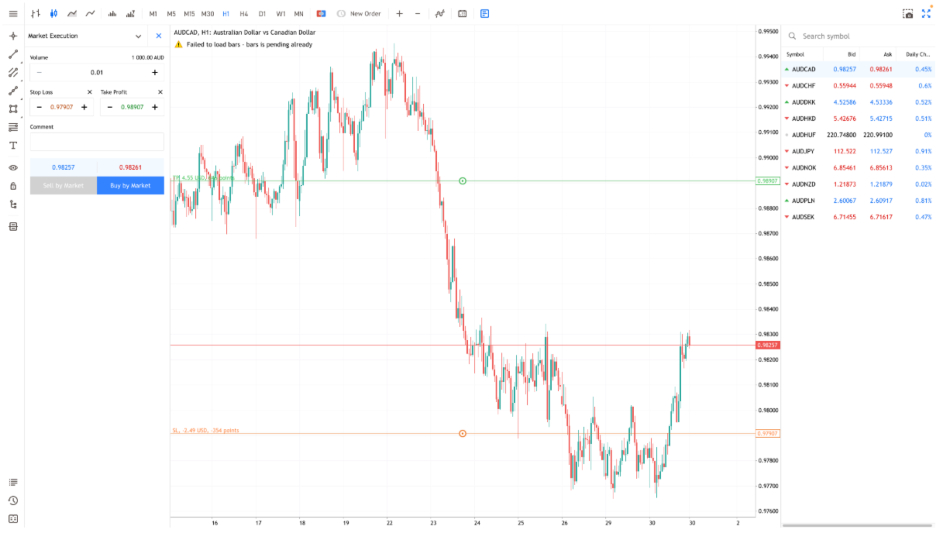
- Go to PU Prime’s web terminal or the MetaTrader 5 web version.
- Enter your login ID, password, and server name.
- Select OK to load your account in the browser; no install needed.
Connect MT5 On The Mobile App
- Install MetaTrader 5 from the App Store or Google Play.
- Open the app, tap the menu, then Manage accounts > add account.
- Search for PU Prime and pick the correct server (live or demo).
- Enter your login ID and password, then tap Sign In.
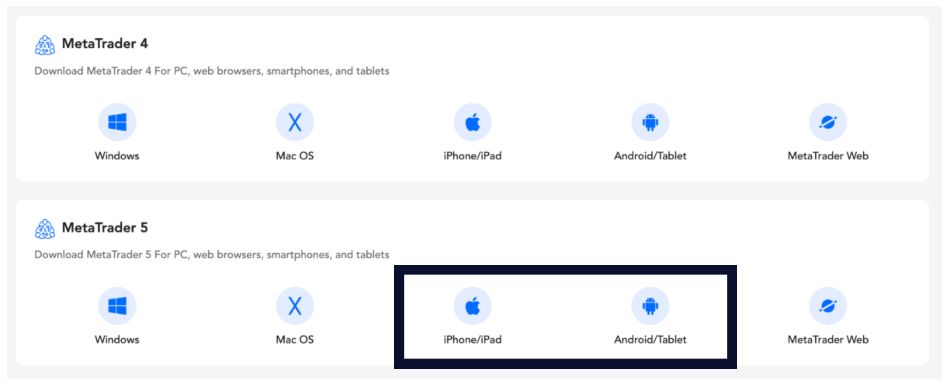
Following the PU Prime links takes you to the MT5 on the app stores
Setup Troubleshooting
A few troubleshooting notes from our setup:
- “Invalid account” usually means the wrong server. Double-check that you’ve selected the correct server in your email and that it’s live, not demo.
- EAs run fine on MT5 here. If you trade Expert Advisors or want individual stock CFDs, MT5 is a better fit than MT4, since it offers a wider range of order types and a broader selection of stocks.