How To Connect FP Markets To MT5
Connecting your FP Markets account to MetaTrader 5 (MT5) takes only a few minutes if you have your login details ready. The main things to watch out for are using your FP Markets’ Client Portal password instead of your MT5 trading password, and choosing the wrong server. I’ll point out both as we go.
 Written By
Christian Harris
Christian is a seasoned analyst, leveraging his expertise in stocks, forex, and crypto to evaluate brokers worldwide. With hands-on trading experience and a strong focus on risk management, he helps traders find reliable platforms. Christian's work for BrokerListings.com has been cited in the Financial Times.
Christian Harris Profile Page Fact Checked By
Tobias Robinson
Tobias is committed to helping traders find the right brokerage for their needs. He has tested 200+ brokers, spent 2,600+ hours using different platforms, and placed 2,100+ trades.
Tobias Robinson Profile Page Edited By
James Barra
James is an experienced broker analyst with a background in financial services. He has spent 2,500+ hours testing brokers, used 35+ different platforms and apps, audited 120+ broker T&Cs, and verified 300+ regulatory licenses. James has also been on US and UK TV, and been a guest on finance podcasts, discussing reports conducted by BrokerListings.com and sharing his expertise.
James Barra Profile PageOctober 9, 2026
Step-By-Step Instructions
Follow these steps to connect your FP Markets account to MT5 on desktop, mobile, or web. This is exactly how I connected my FP Markets account to MetaTrader 5.
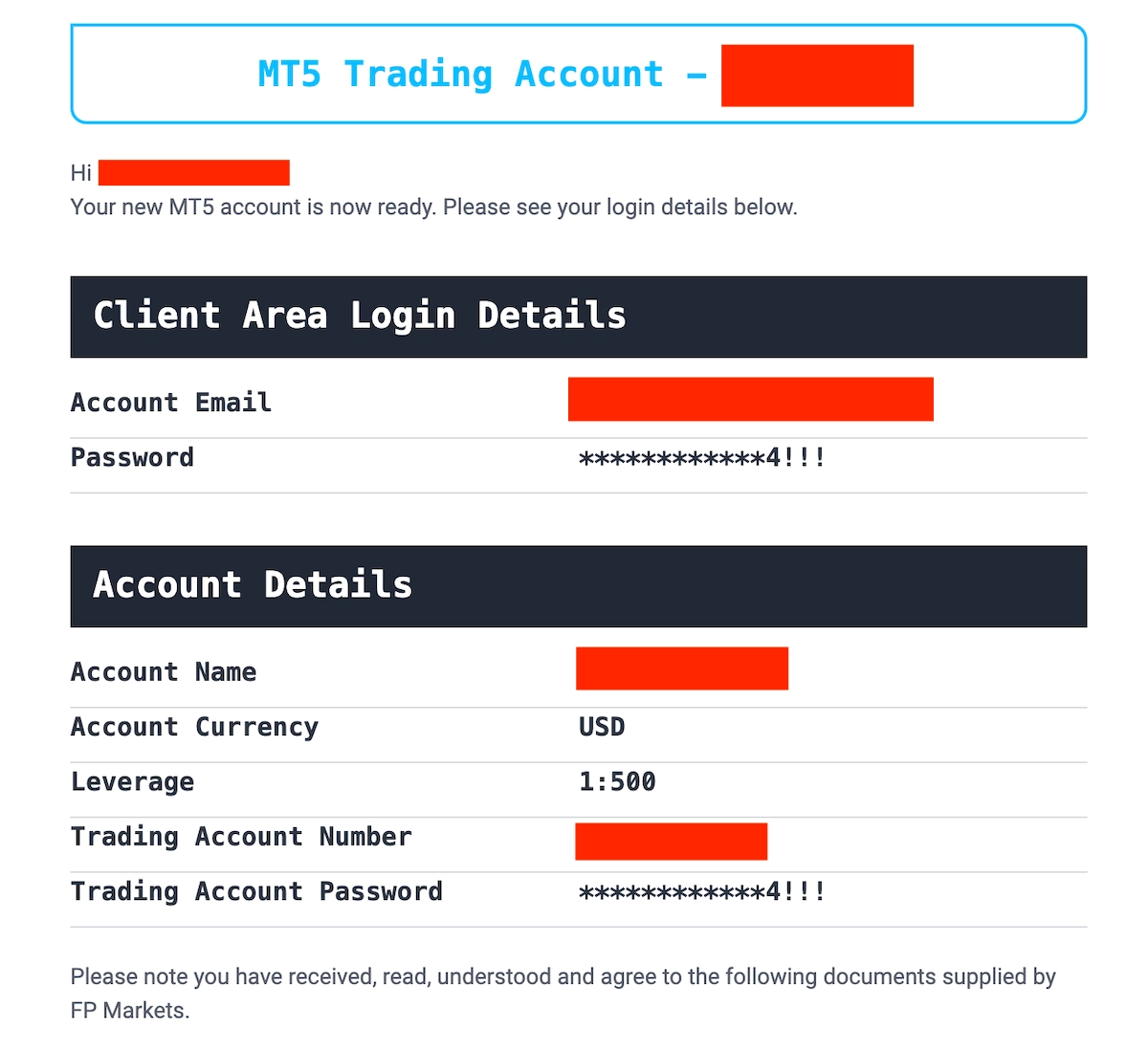
1. First, find your MT5 login details. Look in your inbox for an email called “Your MT5 Live Account Is Ready.” This email has your login number, trading password, and server name.
Remember, your trading password is different from your Client Portal password.
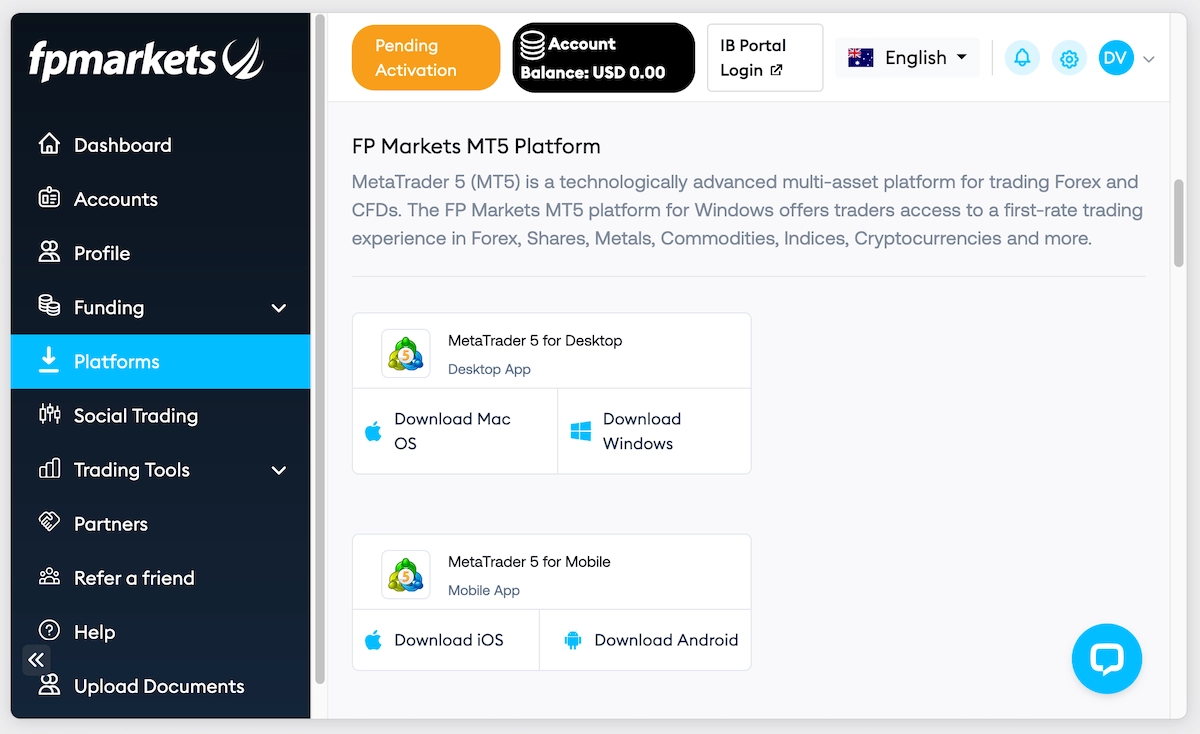
2. Next, download MT5 for desktop. Log in to FP Markets’ Client Portal, go to the ‘Platforms’ tab, and choose either Windows or macOS. If you’re on a phone, FP Markets provides links to the MT5 mobile app on the App Store (iOS) and Google Play (Android).
You can skip this step if you want to use WebTrader.
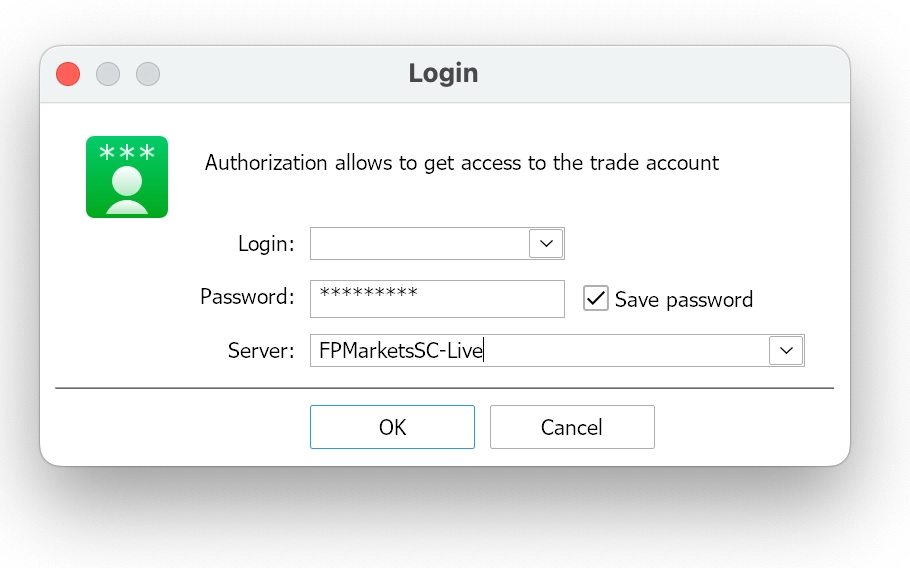
3. To log in on desktop, open MT5 and click ‘File’, then ‘Login to Trade Account’. Enter your login number, trading password, and server exactly as shown in your email, then click OK.
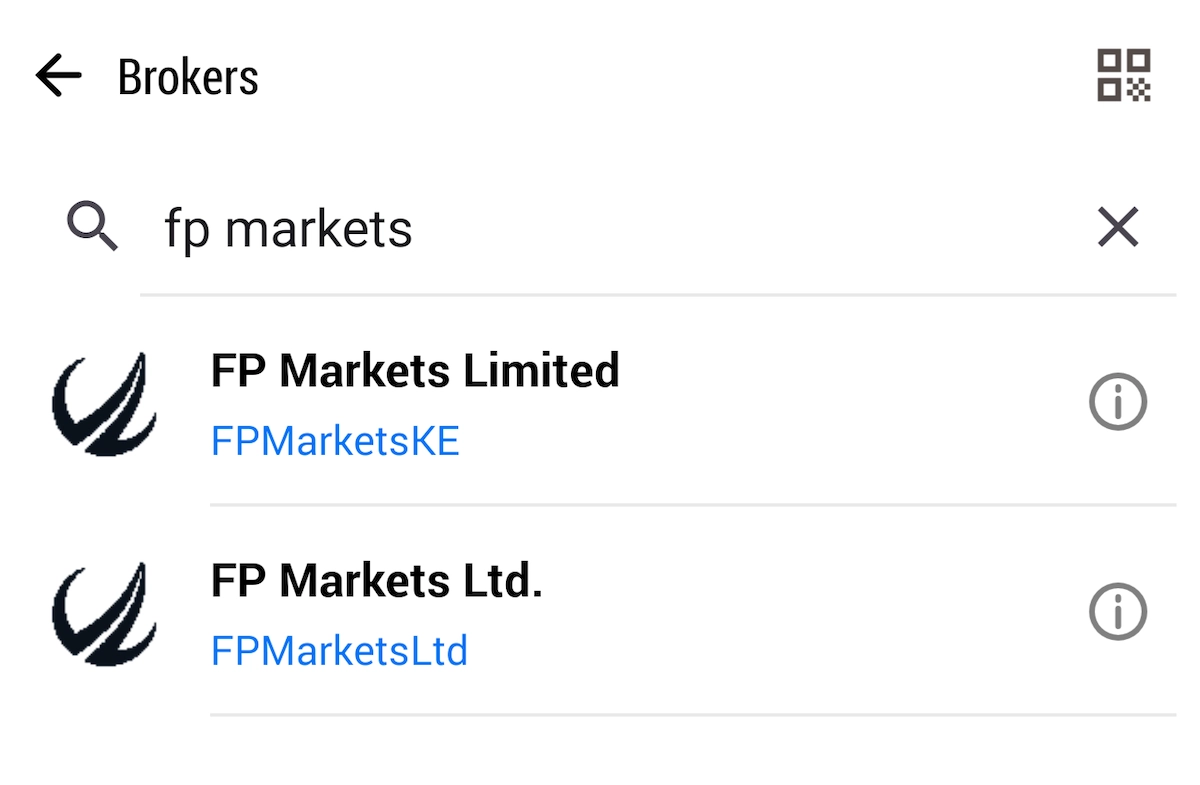
If you don’t see your server, go to File, select Open an Account, search for FP Markets (some companies are listed as First Prudential Markets), choose your server, and select Connect with an existing trade account.
4. To log in on mobile, open the MT5 app and click ‘Add Trading Account’. Search for FP Markets, pick your server, and enter your login number and trading password.
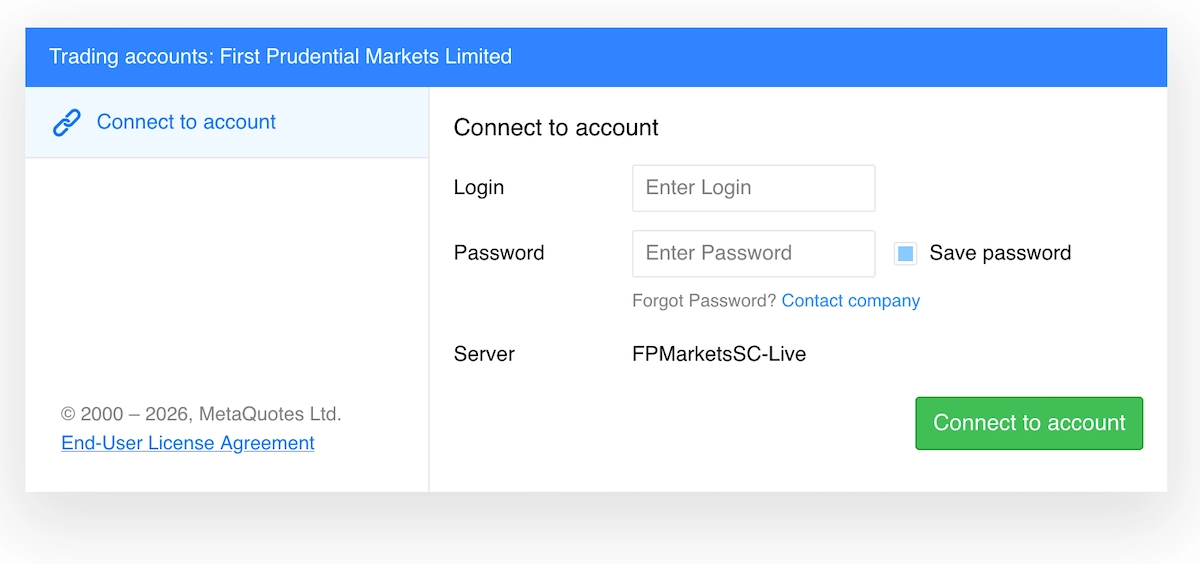
5. You can also log in through your browser. Log in to FP Markets’ Client Portal, go to the ‘Platforms’ tab, and choose either ‘Open Live WebTrader’ or ‘Open Demo WebTrader’. FP Markets then opens WebTrader, which asks for the same three login details (login number, trading password, and server name).
There’s nothing to install, but keep in mind that WebTrader can’t run Expert Advisors (EAs).
You’ll know you’re connected when the bottom-right corner of MT5 desktop shows a ping in milliseconds and your balance appears in the Toolbox (press Ctrl+T).
Common Problems And Fixes
« Make Full Width »| Problem | Likely cause | Fix |
|---|---|---|
| “Invalid account” | Wrong login number or password, such as the Client Portal password or a pasted trailing space | Check the login number and retype the trading password by hand |
| “No connection” | Wrong server, or a firewall or office network blocking MT5 | Copy the FP Markets server name from your email; try another network |
| New Order button greyed out | Logged in with the read-only investor password | Log in again with the trading password |
| Instruments missing | Market Watch only shows some symbols | Right-click Market Watch and select Show All |
Tips For Maximizing MT5 With FP Markets
I’ve spent many hours trading on MT5 through FP Markets – once you’re connected, here are two extra tips:
- Ask about getting a free VPS. FP Markets offers a VPS through third-party Liquidity Connect if you trade more than 10 lots on a Standard account or 20 lots on a Raw account. A VPS keeps Expert Advisors running even when your computer is off. FP Markets’ servers are in Equinix’s NY4 and LD4 data centers, so using a VPS in New York or London can reduce the distance your orders travel. If you trade over 5 lots of forex and metals per month on a Standard MT5 trading account, or over 10 lots on a Raw MT5 account, FP Markets will cover your VPS subscription fee.
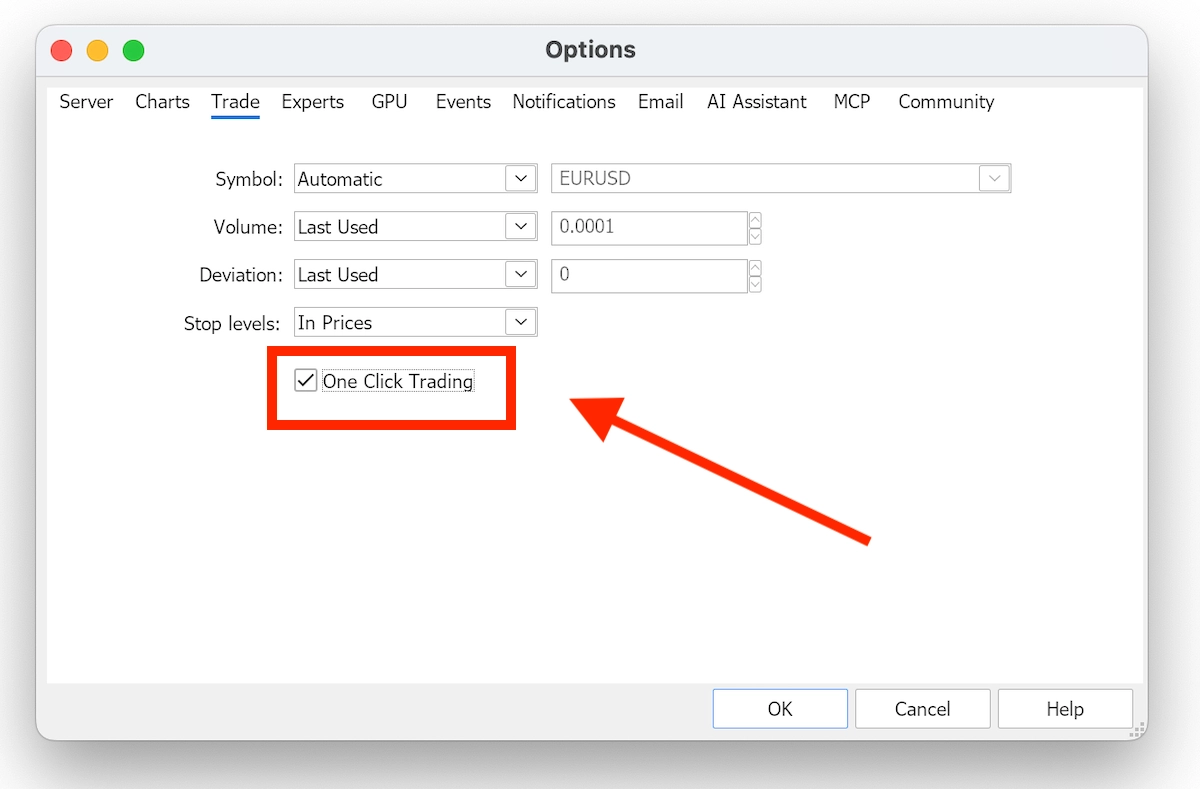
- Turn on one-click trading by going to ‘Tools’, then ‘Options’, and enabling One Click Trading. This lets you place market orders directly from the chart, which helps when prices move fast, but makes it easier to make mistakes.