 Top Lists for USA
How To Connect BlackBull Markets To MT5
It only takes a few minutes to connect your BlackBull account to MetaTrader 5 (MT5) after you’ve set up an MT5 trading account in the Client Portal. Be careful not to use your Client Portal password instead of your MT5 password, and make sure you don’t select the Demo server if you have a live BlackBull account.
 Written By
Christian Harris
Christian is a seasoned analyst, leveraging his expertise in stocks, forex, and crypto to evaluate brokers worldwide. With hands-on trading experience and a strong focus on risk management, he helps traders find reliable platforms. Christian's work for BrokerListings.com has been cited in the Financial Times.
Christian Harris Profile Page Fact Checked By
Tobias Robinson
Tobias is committed to helping traders find the right brokerage for their needs. He has tested 200+ brokers, spent 2,600+ hours using different platforms, and placed 2,100+ trades.
Tobias Robinson Profile Page Edited By
James Barra
James is an experienced broker analyst with a background in financial services. He has spent 2,500+ hours testing brokers, used 35+ different platforms and apps, audited 120+ broker T&Cs, and verified 300+ regulatory licenses. James has also been on US and UK TV, and been a guest on finance podcasts, discussing reports conducted by BrokerListings.com and sharing his expertise.
James Barra Profile PageNovember 3, 2026
Step-By-Step Instructions
Here’s how to connect your BlackBull Markets account to MT5 on desktop, mobile, or the web:
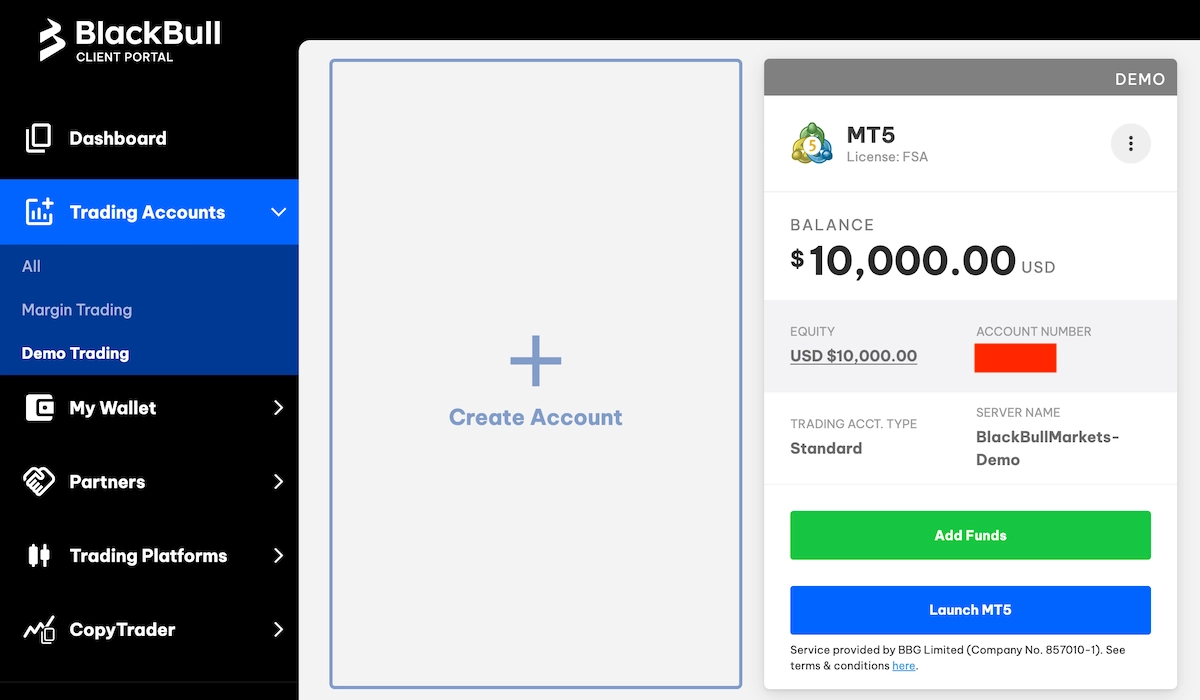
1. First, get your MT5 login details. Log in to the Client Portal, go to ‘Trading Accounts’, and select the ‘Margin Trading’ tab (or ‘Demo Trading’ if you’re using a practice account). Click ‘Create Account’. You’ll then find your account number on the MT5 account card.
Remember, your MT5 password is the one you set up when you created the MT5 account, not your Client Portal password. If you’ve forgotten it, just click ‘Password Reset’ on the card, enter your new password twice, and click ‘Submit’.
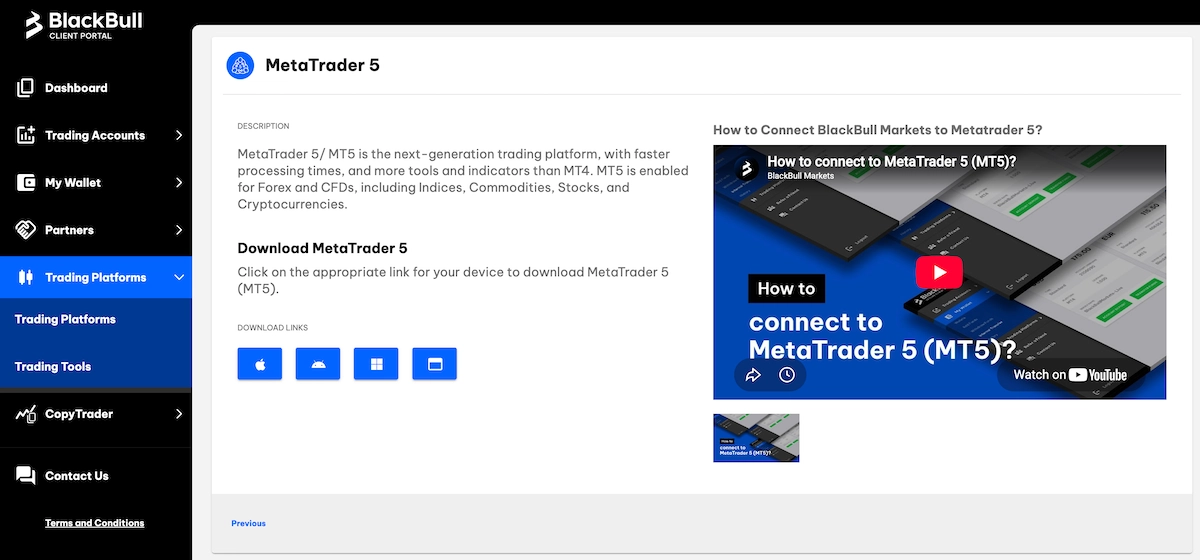
2. Next, download MT5. In your Client Portal, select ‘MetaTrader 5’ from the ‘Trading Platforms’ menu. Click the Windows button to get the BlackBull-branded installer, which should show BlackBull’s servers right away.
If you’re on a Mac, the Mac button gives you MetaQuotes’ standard installer, so you might not see BlackBull’s servers at first. For phones, you can find the official links for the Apple and Android app stores on BlackBull Markets’ website. You can skip this step if you plan to use Web Trader.
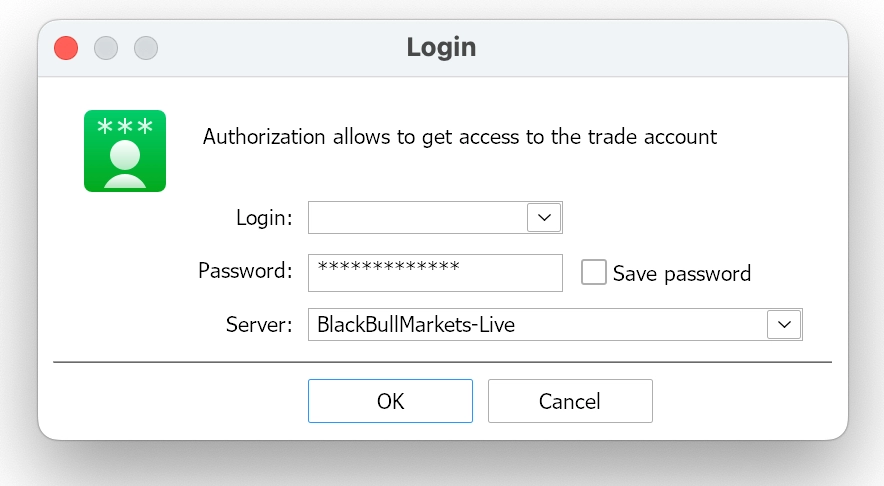
3. To log in on desktop, open MT5, click ‘File’, and choose ‘Login to Trade Account’. Input your MT5 account number and password. Select the appropriate server (either demo or live).
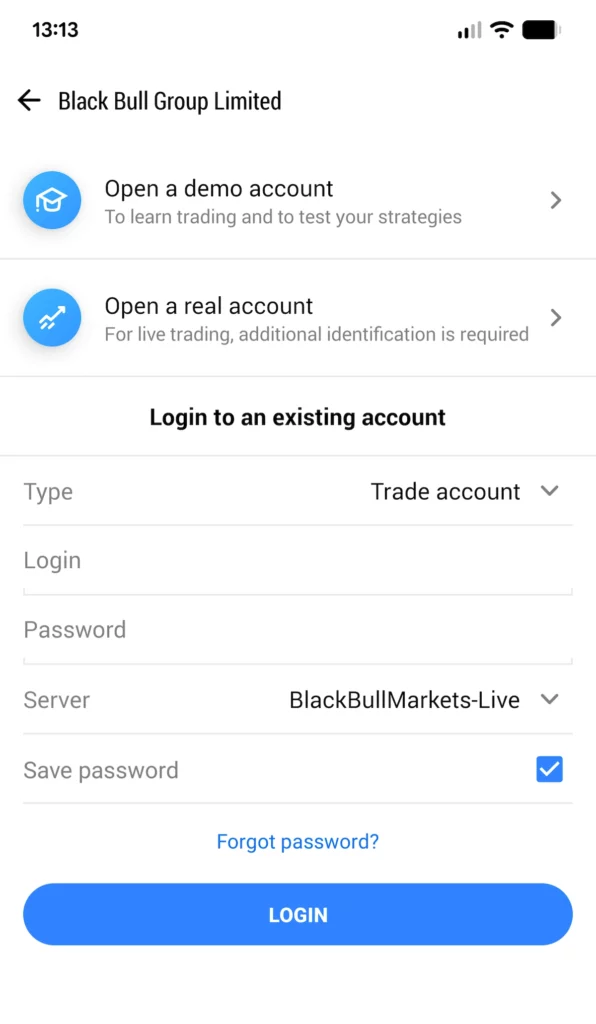
4. To log in on mobile, open the MT5 app and close any pop-ups. Select ‘Black Bull Group Limited’ as your broker, enter your account number and password, pick the live or demo server, and log in.
If you already use the app for another account, tap ‘Settings’ and then ‘New Account’ on iPhone, or go to ‘Manage accounts’ and tap ‘+’ on Android.
5. You can also log in through your browser. Open BlackBull’s live demo or Web Trader platform, enter your account number and password, and click ‘Connect to account’. The link you use will set the server automatically, so you won’t see a server box.
There’s nothing to install, but keep in mind that Expert Advisors (EAs) don’t work in a browser.
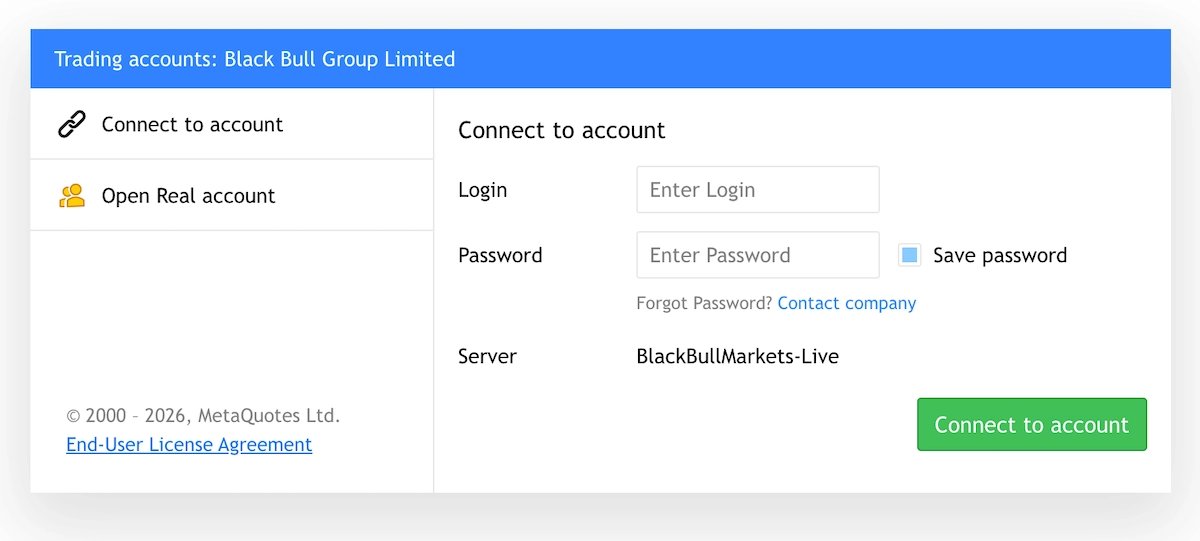
You’ll know you’re connected when you see the BlackBull server name next to your connection status in the bottom-right corner of MT5 desktop. Your balance will also show up in the Toolbox (press Ctrl+T).
Common MT5 Connection Problems And Fixes
| Problem | Likely Cause | Fix |
|---|---|---|
| “Invalid account” | BlackBull Client Portal password used, or a live account entered on the Demo server | Use your MT5 password (reset it on the account card if needed) and pick the Live server |
| “No connection” | BlackBull’s server isn’t loaded, for example after the Mac installer, or a firewall is blocking MT5 | Go to ‘File’, then ‘Open an Account’, and search for “BlackBull Markets”; try another network |
| Balance shows “0.00” | Your deposit is still in your BlackBull Wallet | In the Client Portal, open ‘My Wallet’, then ‘Internal Transfer’, and move funds to your MT5 account |
| ‘New Order’ button greyed out | Logged in with the read-only investor password | Log in again with your MT5 trading password |
| Instruments missing | Market Watch only shows some symbols | Right-click ‘Market Watch’ and select ‘Show All’ |
Tips For Maximizing MT5 With BlackBull Markets
After you’re connected, here are two more tips:
- See if you qualify for a free VPS. BlackBull’s VPS is free if you deposit at least $2,000 and trade 20 lots a month in forex pairs or metals. Otherwise, it costs $25. That’s about one standard lot per trading day, and index or share trades don’t count. A VPS lets your EA keep running even when your computer is off. BlackBull’s VPS is hosted by ForexVPS in London, and from my experience, approval usually takes 1-3 business days.
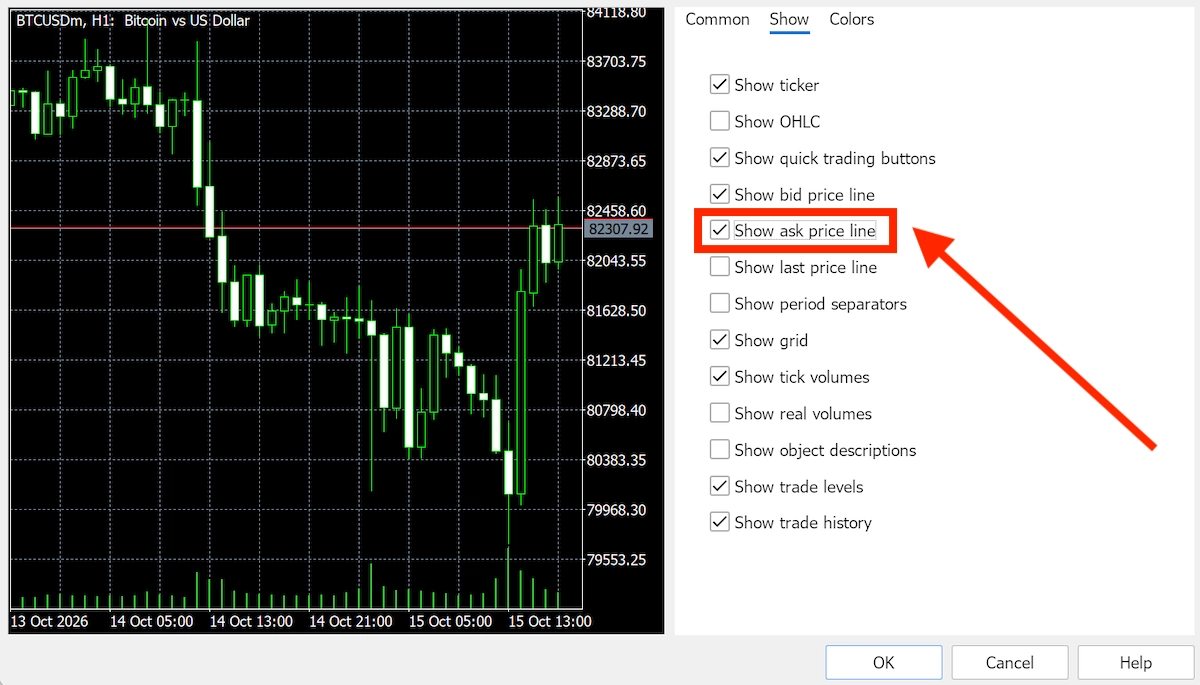
- Turn on the Ask line. MT5 charts show the Bid price, but a stop loss on a sell trade triggers at the Ask price, so your trade could close before the chart line reaches it. Right-click on the chart window to open the context menu. In this window, select the ‘Properties’ tab and then ‘Show’. You will see a checkbox labeled ‘Show ask price line.’ Check this box and click ‘OK’ to apply the changes.
Not set on using BlackBull? Check out our top-rated MT5 brokers.