

How To Connect XM To MT5
You can connect an XM account to MetaTrader 5 (MT5) in 4 steps, but you need to know your login details, the correct server, and either download the platform or app, or open the web-based MetaTrader browser that XM supports. We’ve connected an XM account to MT5 and spent dozens of hours using the platform.
 Written By
Christian Harris
Christian is a seasoned analyst, leveraging his expertise in stocks, forex, and crypto to evaluate brokers worldwide. With hands-on trading experience and a strong focus on risk management, he helps traders find reliable platforms. Christian's work for BrokerListings.com has been cited in the Financial Times.
Christian Harris Profile Page Fact Checked By
Tobias Robinson
Tobias is committed to helping traders find the right brokerage for their needs. He has tested 200+ brokers, spent 2,600+ hours using different platforms, and placed 2,100+ trades.
Tobias Robinson Profile Page Edited By
James Barra
James is an experienced broker analyst with a background in financial services. He has spent 2,500+ hours testing brokers, used 35+ different platforms and apps, audited 120+ broker T&Cs, and verified 300+ regulatory licenses. James has also been on US and UK TV, and been a guest on finance podcasts, discussing reports conducted by BrokerListings.com and sharing his expertise.
James Barra Profile PageAugust 17, 2026
Step 1: Extracting Your Broker Credentials
- You cannot log into the MetaTrader 5 terminal using your primary XM user area password.
- Log in to your secure web-based XM member dashboard on the official broker portal.
- Go to the ‘Accounts’ overview tab and select ‘Open an Additional Account’ or configure your primary live MT5 terminal option.
- Choose your desired account tier (Ultra Low, Zero, or Standard) and select your foundational base currency (such as USD or EUR).
- The system will generate your unique MT5 account login number and designate a specific server path, such as ‘XMGlobal-MT5 2’.
- Record these credentials alongside your custom trading password, as you will need them to sync your platform.
- An XM MT4 account cannot connect to MT5.
Step 2: Setting Up the MetaTrader 5 Terminal
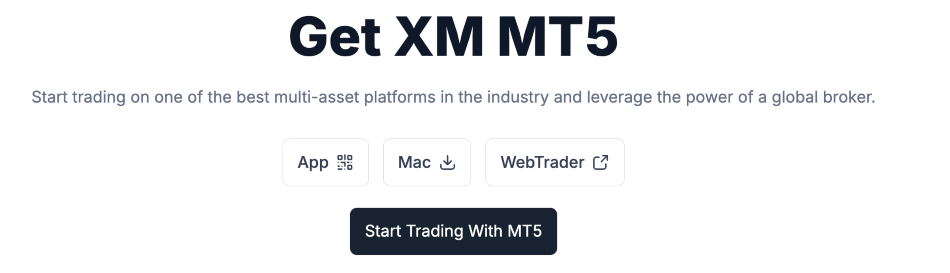
- Download the XM MT5 terminal setup file directly from XM’s MT5 page, the platforms menu in the XM web portal, or get the mobile app from the official iOS or Android app stores.
- Run the installation package and follow the setup prompts.
- Once the installation finishes, launch the desktop application. If an automated new account setup window pops up, you can close it immediately.
Step 3: Locating The Broker Network
- To bridge your local software terminal to XM’s execution servers, click into the top horizontal application menu bar.
- Select ‘File’ and click ‘Open an Account’ to bring up the network broker search window.
- Type ‘XM’ into the search field and press the ‘Find your broker’ button.
- The terminal will scan global registries and display the matching corporate network results. Select the specific corporate operating entity that corresponds to your regional account onboarding branch, then click ‘Next’.
Step 4: Finalizing The Secure Terminal Login
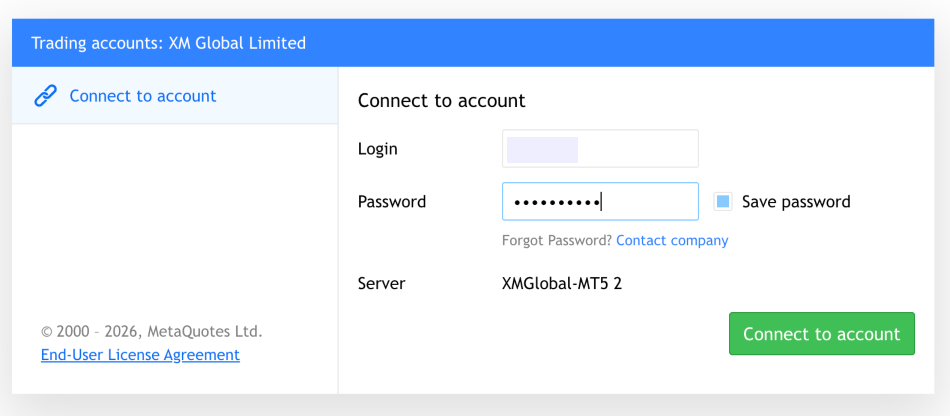
- On the final configuration dashboard, check the ‘Connect with an existing trade account’ checkbox.
- Input your specific MT5 account number into the login field and type your corresponding trading password.
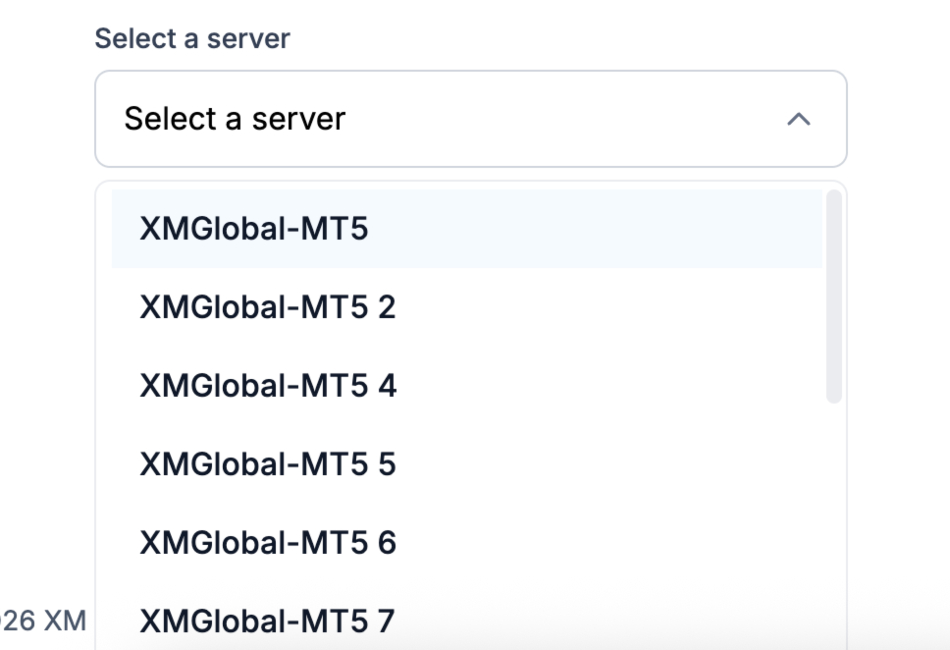
- Use the dropdown menu to select the exact server designation provided in your web dashboard (e.g., ‘XMGlobal-MT5 2’).
- Click ‘Finish’. Your terminal will play a connection chime, and your live balance, margin metrics, and equity base will instantly populate the terminal window.
MT5 Troubleshooting
These are the common issues and fixes if you’re running into problems connecting an XM account with MetaTrader 5:
« Make Full Width »| Error Message/Problem | Primary Cause | Solution |
|---|---|---|
| “Invalid Account” | Credential mismatch, wrong server, or MT4 ID used on MT5 | Double-check MT5 numeric ID & exact server in your XM Dashboard |
| “No Connection” / “Off-line” | Local network block, firewall issue, or server maintenance | Force a server rescan or check firewall settings on Port 443 |
| XM Server Missing in Dropdown | MT5 local broker directory is outdated | Manually search XM Global Limited via File > Open an Account |
| “Trade Disabled” | Unverified account or archived dormant account | Complete KYC verification or open a new sub-account in Member Area |