 Top Lists for USA
How To Connect PrimeXBT To MT5
Whilst the process of connecting to MT5 can be simple, as MT5 recognizes PrimeXBT’s MT5 associate (PXBT Trading Ltd), you should search for ‘PXBT’ and not ‘PrimeXBT’. We walk through the steps and helpful connection tips.
 Written By
Christian Harris
Christian is a seasoned analyst, leveraging his expertise in stocks, forex, and crypto to evaluate brokers worldwide. With hands-on trading experience and a strong focus on risk management, he helps traders find reliable platforms. Christian's work for BrokerListings.com has been cited in the Financial Times.
Christian Harris Profile Page Fact Checked By
Tobias Robinson
Tobias is committed to helping traders find the right brokerage for their needs. He has tested 200+ brokers, spent 2,600+ hours using different platforms, and placed 2,100+ trades.
Tobias Robinson Profile Page Edited By
James Barra
James is an experienced broker analyst with a background in financial services. He has spent 2,500+ hours testing brokers, used 35+ different platforms and apps, audited 120+ broker T&Cs, and verified 300+ regulatory licenses. James has also been on US and UK TV, and been a guest on finance podcasts, discussing reports conducted by BrokerListings.com and sharing his expertise.
James Barra Profile PageNovember 27, 2026
Connection Steps
1. Obtain MT5 Login Details
Once you are signed in to PrimeXBT and on the ‘Trading accounts’ page, press ‘New account’ if you haven’t already established an MT5 account. Choose to establish either a live or demo account.
On the screen that appears, press ‘MetaTrader 5’. Select an account type and currency for your PrimeXBT account and click ‘Create account’. Within my PrimeXBT account there was an option to select between USD and USDT.
Pressing ‘Trade’ within your MT5 account card will allow you to view your account details. Cards for demo accounts have a ‘DEMO’ label in orange. As both live and demo accounts are situated on the same server, this proves beneficial.
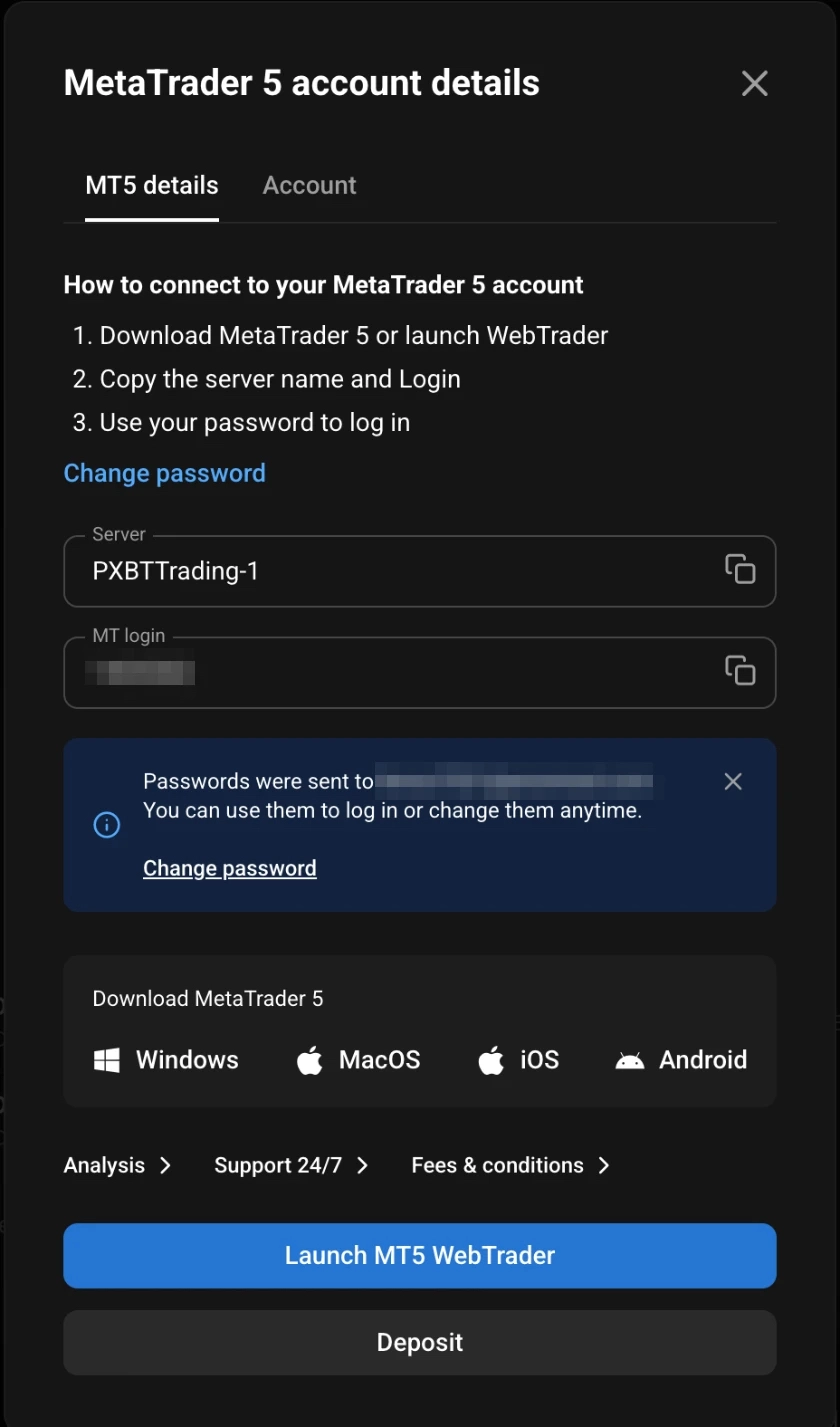
Within the MT5 ‘account details’ section you can see, and copy, your ‘Server’ and ‘MT login’. Paste this number into MT5. On the ‘Account’ tab within the MT5 screen, the ‘Account ID’ will also display letters, e.g., in my account these began with ‘ZSO’.
Whilst you won’t be able to see your password, it should have been emailed to you when you opened your MT5 account. It is also worth noting that your PrimeXBT and MT5 passwords differ. If you need to, press ‘Password’ on your account card and then ‘Reset password’.
2. Download MT5
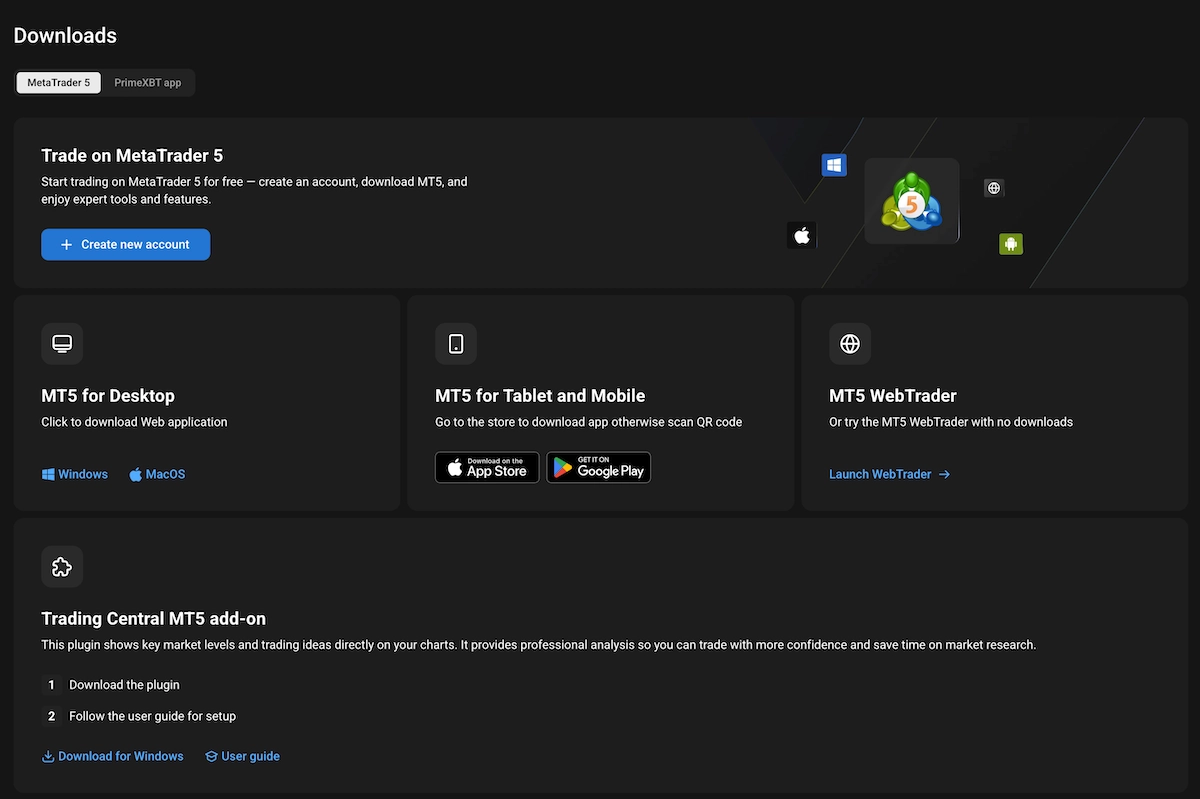
From the ‘More’ tab on the PrimeXBT home screen, press ‘Downloads’. You can then download the MT5 software for either Windows or Apple Mac computers.
To download the MT5 mobile app, however, press ‘App Store’ or ‘Google Play’ and then visit the MetaQuotes MT5 mobile app page. Please be aware that this is different to the PrimeXBT app which is used to log in to the PrimeXBT platform.
This stage can be bypassed should you wish to utilize the WebTrader facility to log in to MT5 Via Your Browser.
3. Log Into MT5 (Computer)
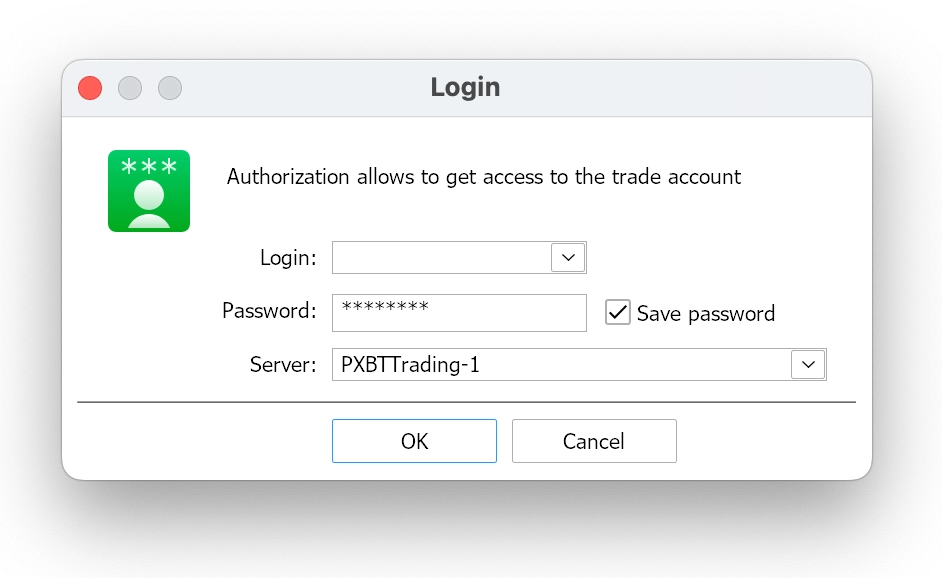
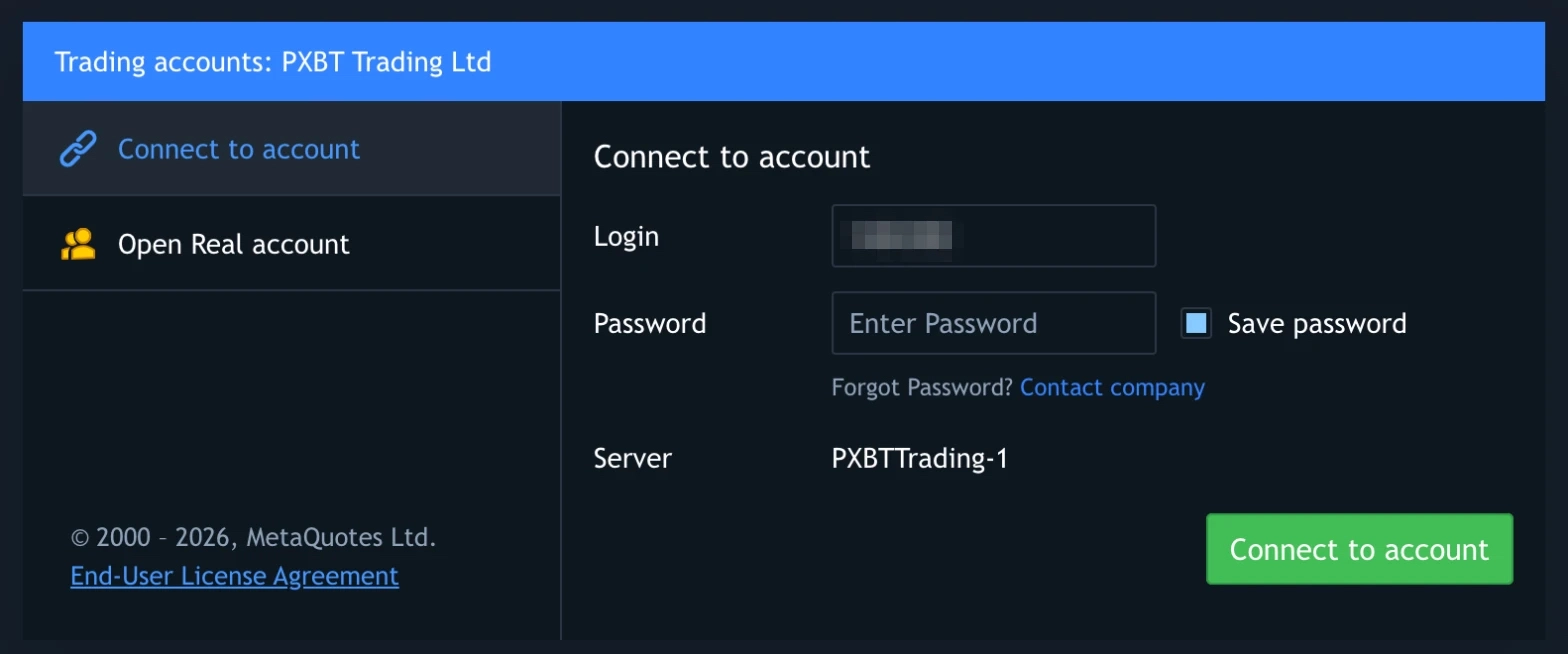
On opening MT5, press ‘File’ and then ‘Login to Trade Account’. Enter your MT login and password. Ensure that the ‘PXBTTrading-1’ server is selected and, should this not already be the case, tick the ‘Save password’ box. My live and demo accounts were both hosted on the PXBTTrading-1 server, consistent with the images within PrimeXBT’s help pages.
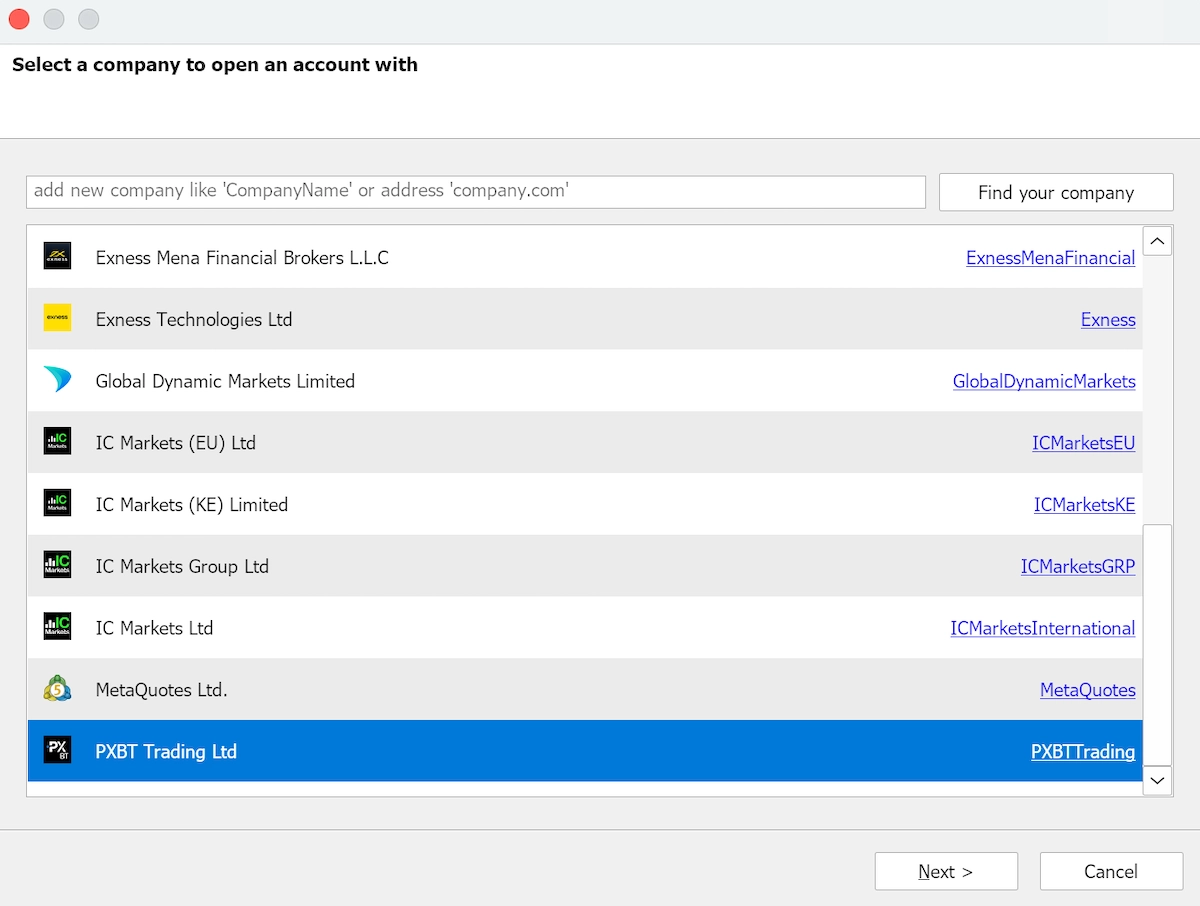
If the PXBT server is not recognized, then from within MT5, press ‘File’, then ‘Open an Account’. Search for and select ‘PXBT Trading Ltd’. Afterward, press ‘Connect to an existing account’.
Your account balance can be seen on the ‘Toolbox’. Again, as both live and demo accounts are situated on the same server, your MT login number is what will dictate which account MT5 connects to. Ensure that the login number that you have inputted is correct. Should the message ‘Trading for this account is disabled on the server’ be shown, then please check your account balance. This occurred on my $0 account.
4. Log Into MT5 (Mobile)
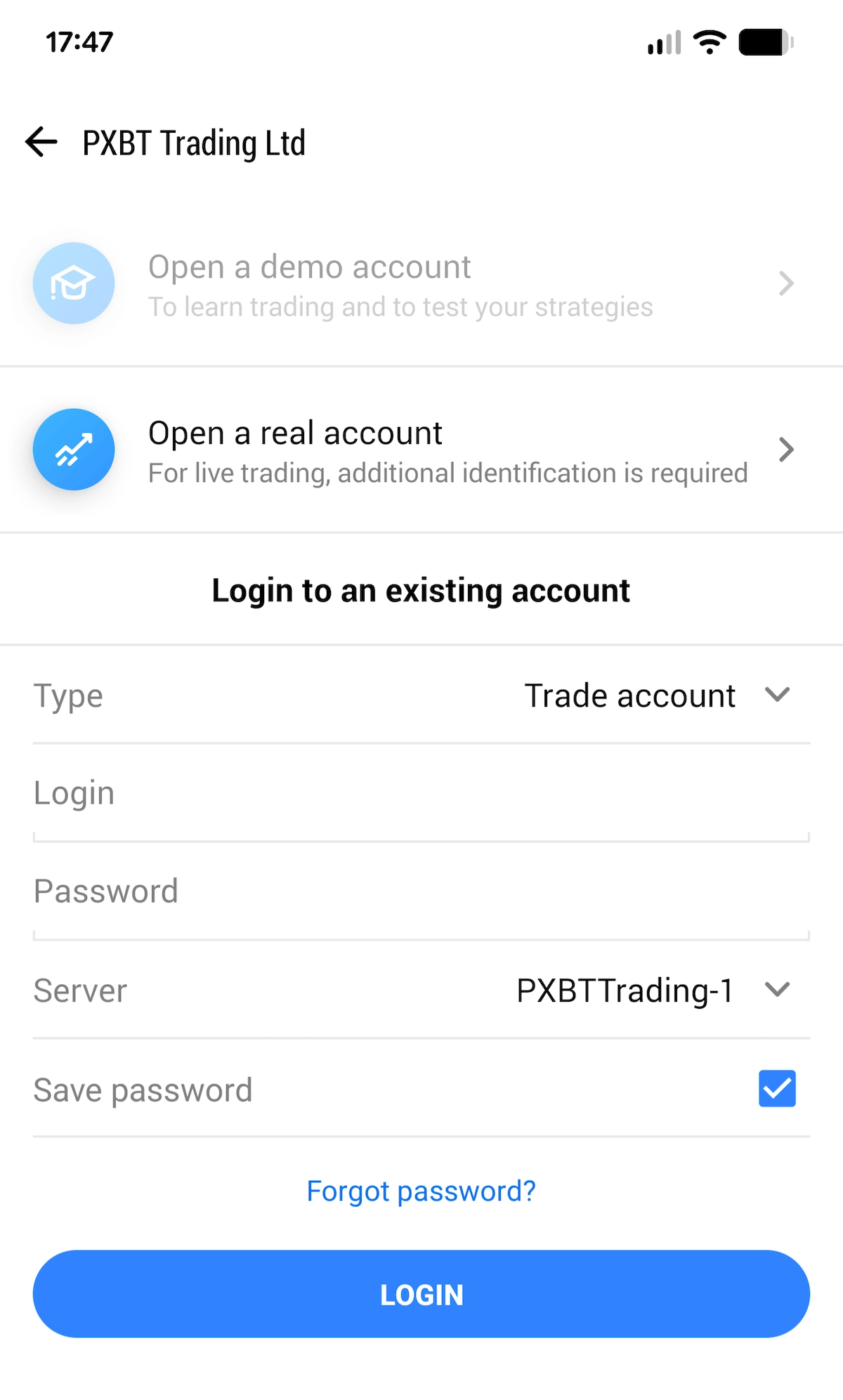
Upon opening the MT5 mobile app, close any pop-up screens. Then, press the blue ‘Add Trading Account’ button. Search for and select ‘PXBT Trading Ltd’. Fill in the ‘Login to an existing account’ screen. As my test account had previously had its server designated as PXBTTrading-1, I simply typed in my login and password and then pressed ‘LOGIN’.
Underneath this screen there is a ‘Forgot password?’ link. Unfortunately, this does not enable you to reset your password but rather shows contact details for your broker. Thus, it is quicker to reset your password by pressing ‘Password’ on your PrimeXBT account card and then ‘Reset password’.
5. Log Into MT5 (Web)
MT5 WebTrader is readily available on the PrimeXBT platform. Simply click the blue ‘Trade’ button on your ‘Trading account page’. A new pop-up screen will then show your MT5 account details including your login and server details. All you then need to do is input your password and press ‘Launch MT5 WebTrader’.
Common PrimeXBT MT5 Connection Problems And Fixes
| Problem | Likely Cause | Fix |
|---|---|---|
| “Invalid account” | Your PrimeXBT password, or the lettered Account ID instead of your MT login | Copy the server and MT login from the account details window, and use your emailed MT5 password |
| “No connection” or no PrimeXBT server listed | The server is listed under PXBT, or it isn’t loaded yet after the Mac installer | Go to ‘File’, then ‘Open an Account’, and search for “PXBT”. Try another network if a firewall blocks MT5 |
| “Invalid account” on an old login | Demo accounts are deleted after 30 days without a login, and empty live accounts are archived after 30 days of inactivity | Open a new demo, or fund the archived live account to reactivate it |
| Balance shows “0.00” or trading is disabled | Your deposit is still in your PrimeXBT Wallet | |
| Balance looks 100 times too high | Cent accounts show your money in US cents (USC) | Nothing to fix. A $10 deposit shows as 1,000 USC |
| ‘New Order’ button greyed out Logged in with the read-only investor password | Further Advice On Utilizing MT5 With PrimeXBT | Log in again with your master password |
Tips From An Experienced MT5 User
Having used MT5 for many years, below are some top tips for those who are connecting PrimeXBT and MT5 for the first time:
- Establish your account type on PrimeXBT. Of the available account types, the ‘MT5 Standard’ account has a stop-out ratio of 50% and includes a trading bonus. The ‘MT5 ZeroStop’ and ‘MT5 Pro’ account types both include a stop-out ratio of 0% and no trading bonus. With a 0% stop-out ratio, you can continue to hold losing positions even when your account equity is almost depleted. Nevertheless, your whole MT5 account value is then vulnerable to loss. Consequently, a stop-loss should be applied to every trade that you make.
- Remember that PrimeXBT applies a hidden 10x margin. Even though MT5 continues to indicate regular margin ratios, a 10x margin is necessary for trading around market close times. Specifically,10x margin is needed for gold and oil 15 minutes before Monday to Thursday market closure. Likewise,10x margin is required for Forex, gold and key US indices one hour before Friday market close and three hours before oil market closure. Furthermore,10x margin is also essential 5 minutes before and 1 minute after major news announcements such as Non-Farm Payrolls.
- Change your password. Following login, on your MT5 account card within PrimeXBT, press ‘Password’. Then, press ‘Change trading password’. On this screen there is also a ‘Change investor password’ button. This allows certain people (for instance, mentors) to gain access to your account. Within the MT5 desktop program, you can also edit your passwords by navigating to ‘Tools’, then ‘Options’, and then selecting the ‘Server’ tab.
- Set up and manage a good quality demo account. Initially, demo accounts are provided with $10,000. However, using the ‘Set balance’ button on your demo account card, you can alter this sum to match the amount of money that you wish to initially trade with. Moreover, it is advisable to log in to your demo account at least once a month. As PrimeXBT automatically deletes demo accounts that have not been logged into for over 30 days, these will be removed the subsequent Sunday and cannot then be restored.
- Log in to MT5 on a computer to analyze charts. MetaQuotes’ web and desktop MT5 programs provide 9 and 21 timeframes respectively. Moreover, the desktop program has 38 in-built indicators, compared to just 30 on the web version. Therefore, 2- and 8-hour charts cannot be analyzed within your browser. Since PrimeXBT does not provide VPS facilities, if you desire 24-hour EA operation then you will require your own VPS.
Still unsure about using PrimeXBT? Check out our full PrimeXBT review. Alternatively, you can see our pick of the best brokers with MT5.