 Top Lists for USA
How To Connect NinjaTrader To TradingView
You can trade your NinjaTrader futures account straight from TradingView’s charts, and if the account is funded and on a current plan, the connection costs zero extra. It takes 5 steps, and NinjaTrader Desktop doesn’t need to be open.
 Written By
Christian Harris
Christian is a seasoned analyst, leveraging his expertise in stocks, forex, and crypto to evaluate brokers worldwide. With hands-on trading experience and a strong focus on risk management, he helps traders find reliable platforms. Christian's work for BrokerListings.com has been cited in the Financial Times.
Christian Harris Profile Page Fact Checked By
Tobias Robinson
Tobias is committed to helping traders find the right brokerage for their needs. He has tested 200+ brokers, spent 2,600+ hours using different platforms, and placed 2,100+ trades.
Tobias Robinson Profile Page Edited By
James Barra
James is an experienced broker analyst with a background in financial services. He has spent 2,500+ hours testing brokers, used 35+ different platforms and apps, audited 120+ broker T&Cs, and verified 300+ regulatory licenses. James has also been on US and UK TV, and been a guest on finance podcasts, discussing reports conducted by BrokerListings.com and sharing his expertise.
James Barra Profile PageOctober 27, 2026
Step-By-Step Instructions
Follow these five steps to connect your NinjaTrader account to TradingView’s website or desktop app.
Step 1: Check TradingView Is Turned On In NinjaTrader
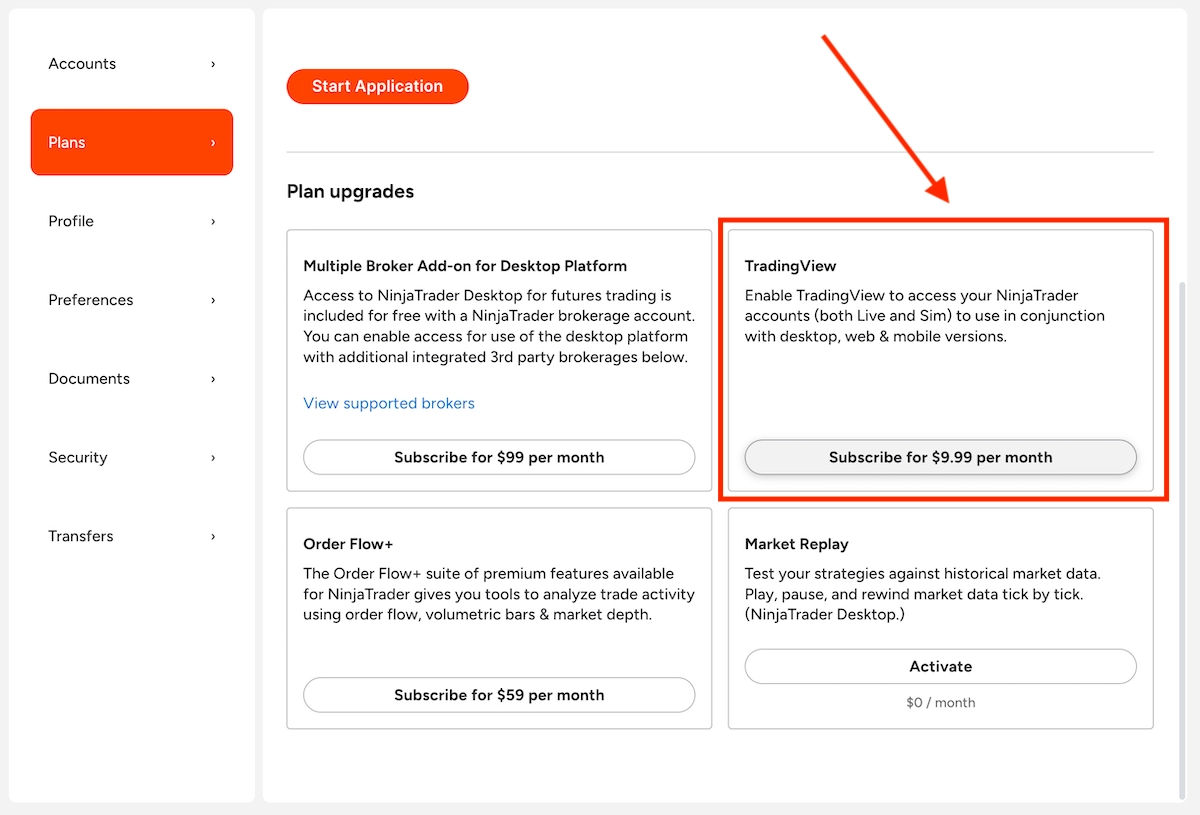
Log in to your NinjaTrader Account Dashboard, click the profile icon at the top right, select ‘Settings’, and open the ‘Plans’ tab.
You’ll find TradingView there. If your account is funded and on a current plan, you don’t need to buy anything. Older or unfunded accounts will need to add the $9.99 add-on.
Step 2: Open A Futures Chart On TradingView
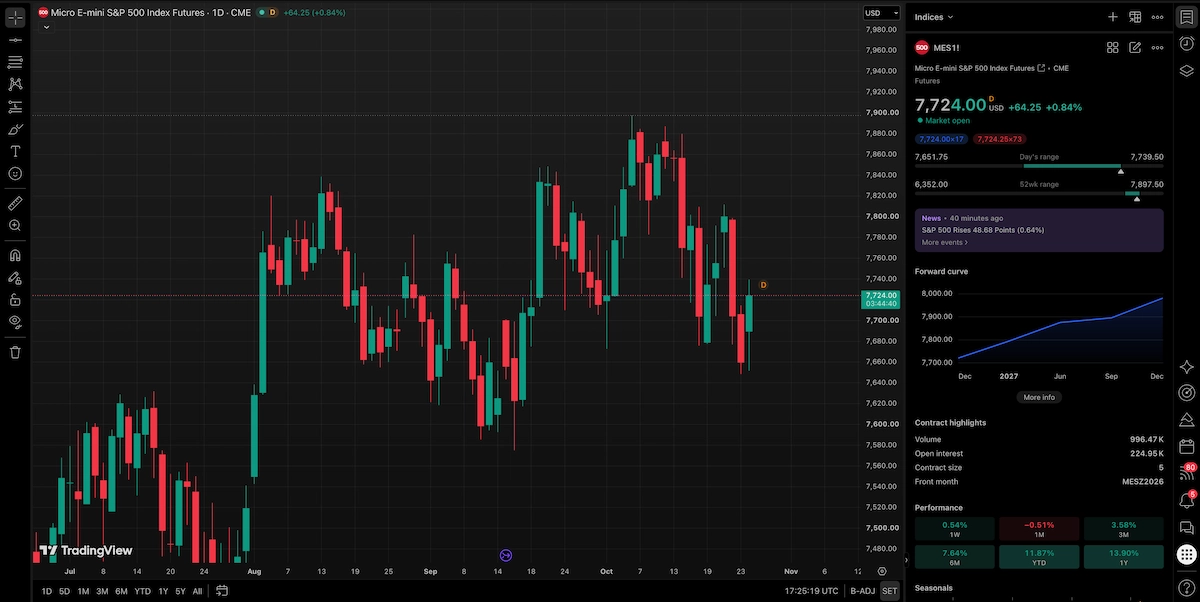
Log in to TradingView.com, open ‘Supercharts’, and load a futures contract like ‘MES1!’ for Micro E-mini S&P 500 futures.
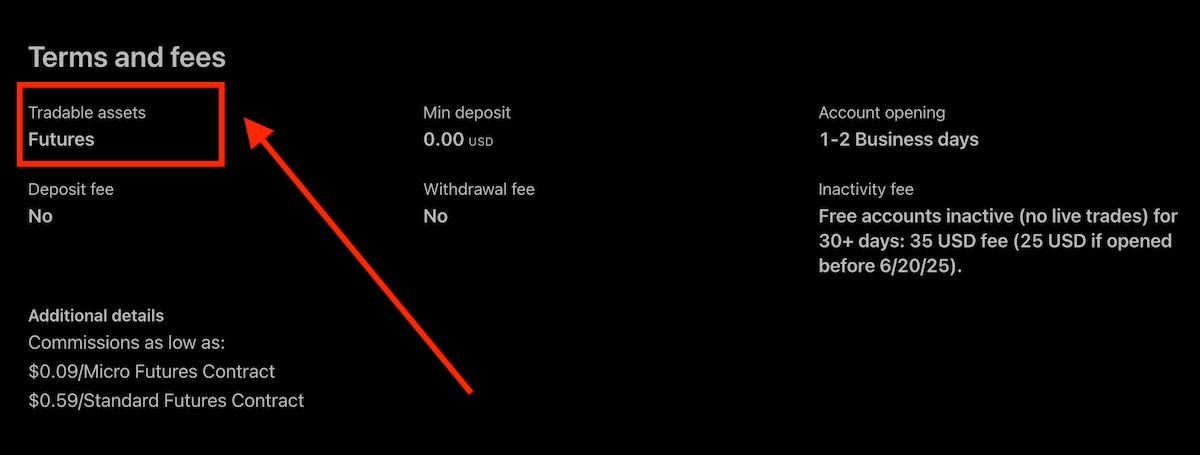
It’s worth remembering that NinjaTrader is a futures-only broker, so you can’t trade other asset classes on your NinjaTrader Brokerage account, such as cryptocurrencies or forex.
And while you cannot trade traditional physical or cash equities directly, NinjaTrader and TradingView do support CME Single Stock Futures, which let you take long or short positions on leading US companies (like Apple, Nvidia, and Tesla) using a futures margin framework.
Step 3: Select NinjaTrader In The Trading Panel
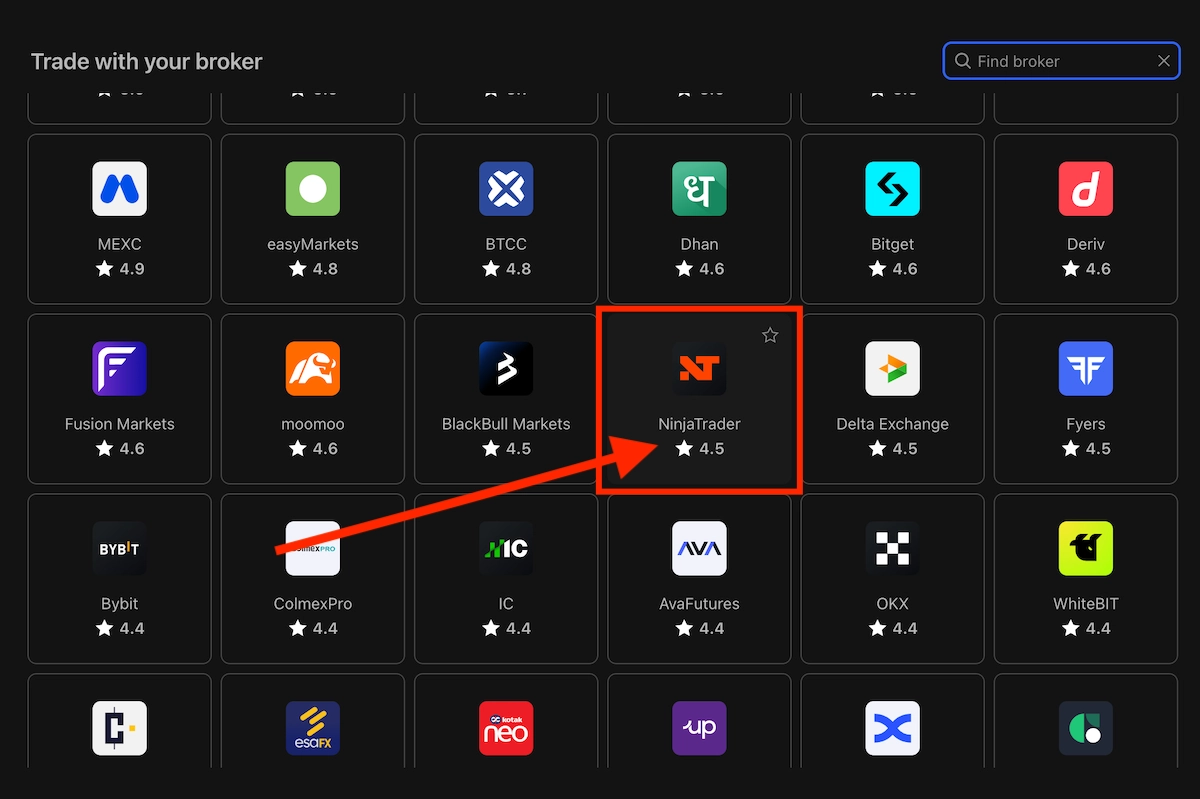
In TradingView, click the ‘Trade’ button at the top-right of the screen, choose NinjaTrader from the broker list, and click ‘Connect’.
I’ve found the quickest way to find NinjaTrader from the broker list is to use the search function.
Step 4: Choose Live Or Demo
Select ‘Live’ if you have a funded NinjaTrader account, or ‘Demo’ for a simulated account, then click ‘Connect’.
Note that prop firm traders should pick ‘Demo’ even if their account is funded.
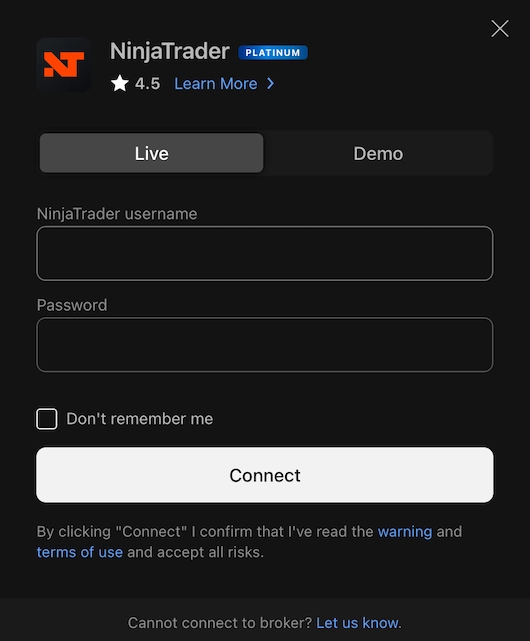
Step 5: Log In With Your NinjaTrader Details
Enter your NinjaTrader username and password (not your TradingView login) and click ‘Connect’. I find it more convenient to cut and paste your credentials than type them manually, since they are case-sensitive and social logins like Google aren’t supported.
If you have two-factor authentication enabled, NinjaTrader may email you to approve your first login.
Once connected, the TradingView panel then displays your account details. Your NinjaTrader market data will also show up on TradingView charts automatically.
After you’re connected, click ‘Buy’ or ‘Sell’ on the chart, choose your order type (market, limit, stop, or stop-limit), enter the number of contracts, and confirm your order. When one-click trading is turned on, your order is sent immediately when you click — no preview is shown.
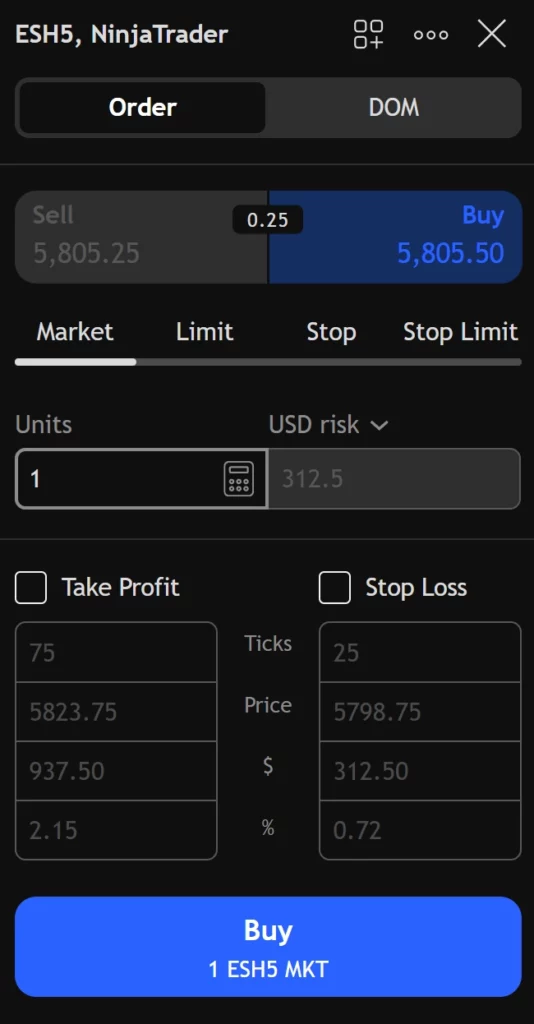
Connecting On The TradingView App
On the TradingView app for iPhone or Android, open a chart, tap the three-dot menu, and choose ‘Trade with your broker’.
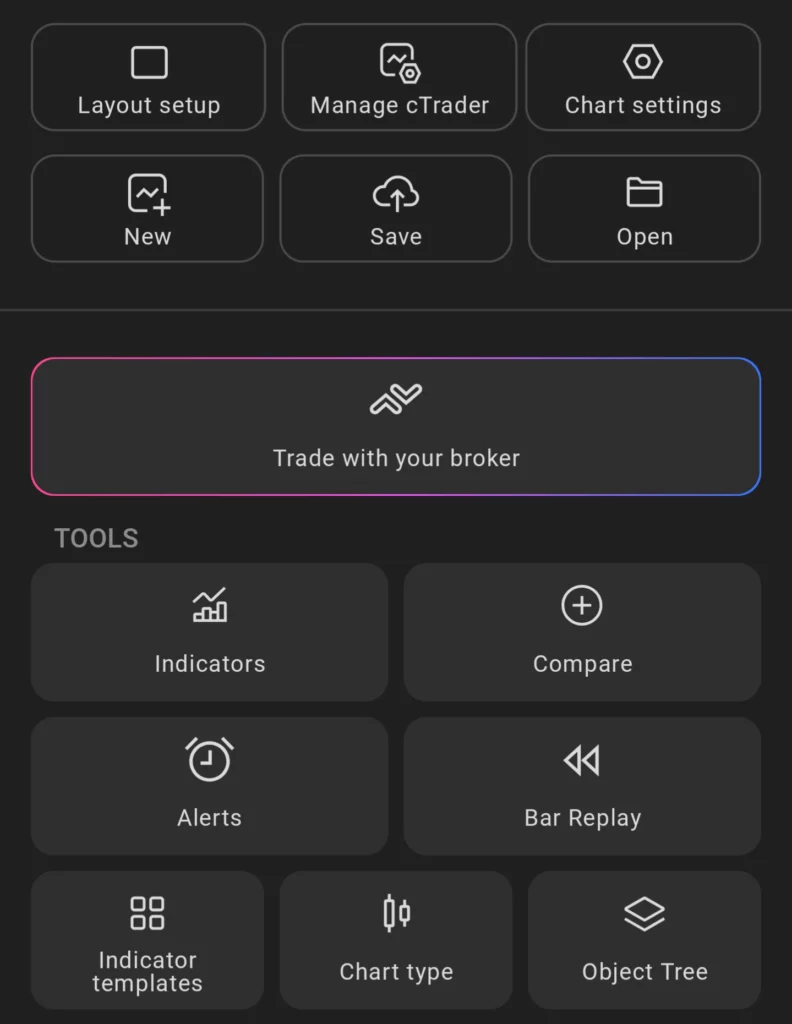
Search for ‘NinjaTrader’, then follow Steps 4 and 5 above using the same account type and NinjaTrader login.
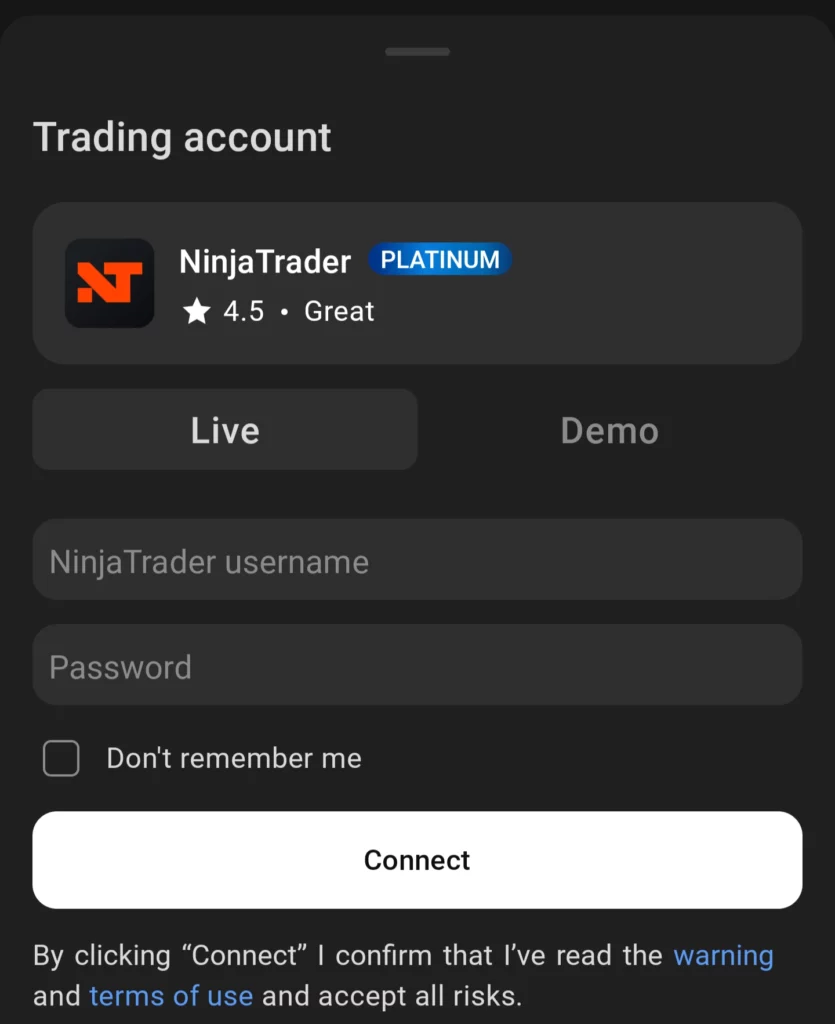
Common Problems And Fixes
From my experience connecting TradingView to dozens of brokers, NinjaTrader included, these are the error messages you’re most likely to see when connecting NinjaTrader, plus two account problems that can block access, with the fix for each.
| Problem | Likely Cause | Fix |
|---|---|---|
| “TradingView has not been entitled to access your account” | TradingView isn’t active on your NinjaTrader account | Open Settings, then Plans, in the Account Dashboard and fund the account or add the $9.99 add-on |
| “Username or password is incorrect” | Autofill, wrong capital letters or a social login | Type your NinjaTrader details by hand and check they work on NinjaTrader’s own platform |
| “You do not have access to Live/Demo accounts” | The wrong account type was picked in Step 4 | Reconnect and pick the other type, then |
| “You have 2FA enabled and log in from a new machine” | The login from TradingView hasn’t been approved | Approve it from NinjaTrader’s email, or contact NinjaTrader support if no email arrives |
| Login fails on a brand-new account | Your first deposit hasn’t settled | Wait for the funds to settle, after which NinjaTrader turns access on automatically |
| Connection stops after a withdrawal | Your balance reached $0 | Deposit again, since access pauses at the start of the next renewal cycle |
What You Need Before You Connect
Your access to TradingView depends on whether your NinjaTrader account is funded and which plan you have. Funded accounts get TradingView access and Level 1 CME Group and Eurex data at no extra cost. Any deposit above $0 counts once it settles.
| Your NinjaTrader account | What TradingView access needs | Extra monthly cost |
|---|---|---|
| Funded, on the Free, Monthly or Lifetime plan | Nothing extra | $0 |
| Funded, on older pricing you haven’t switched from | The standalone TradingView add-on, or a switch to a current plan | $9.99 |
| Not funded | The standalone add-on, which covers Demo trading only | $9.99 |
| Prop firm or evaluation account | Your firm turns access on, so don’t buy the add-on | Set by your firm |
These details are from NinjaTrader’s TradingView connection guide, which explains that NinjaTrader bills for the add-on, not TradingView. If you switch from older pricing, the fee is removed. However, the guide notes that the Free and Monthly plans have a slightly higher Micro commission.
On TradingView, a free Basic account is enough. TradingView’s NinjaTrader page confirms chart trading is available for Basic users, and NinjaTrader’s guide says you don’t need a TradingView data subscription.
Tips For Using NinjaTrader On TradingView
Once you’re connected, here are two extra tips:
- Keep one-click trading turned off at first. By default, it’s off, so you’ll see a preview for every order and need to confirm it. This is important with futures: NinjaTrader’s day-trading margin is $500 for an E-mini S&P 500 contract and $50 for the Micro, so choosing the wrong one can tie up 10 times more money.
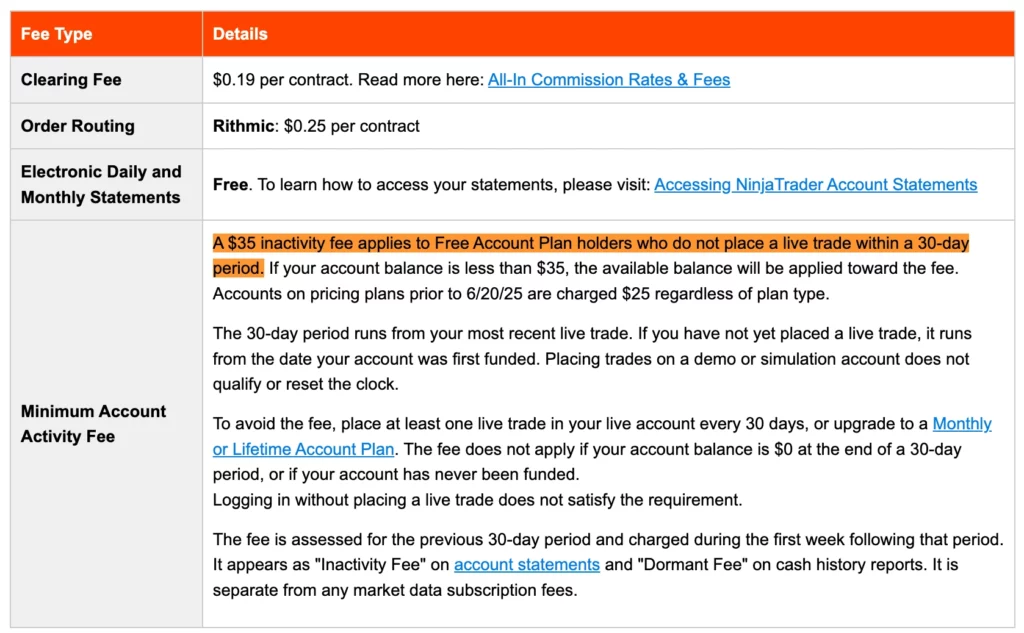
- Be aware of the activity fee if you mostly use charts. As explained in NinjaTrader’s cost guide, Free-plan accounts that log in but don’t place a live trade within 30 days are charged $35. That’s almost three times the $12 monthly price of the Level 1 CME data bundle.
Know you want to use TradingView but not set on NinjaTrader? Check our rankings of the best brokers with TradingView.