 Top Lists for USA
How To Connect BlackBull Markets To TradingView
If you already have a BlackBull account, just sign up for a free TradingView account and set aside a few minutes. The four steps below work in your web browser, the TradingView desktop app, and the mobile app.
 Written By
Christian Harris
Christian is a seasoned analyst, leveraging his expertise in stocks, forex, and crypto to evaluate brokers worldwide. With hands-on trading experience and a strong focus on risk management, he helps traders find reliable platforms. Christian's work for BrokerListings.com has been cited in the Financial Times.
Christian Harris Profile Page Fact Checked By
Tobias Robinson
Tobias is committed to helping traders find the right brokerage for their needs. He has tested 200+ brokers, spent 2,600+ hours using different platforms, and placed 2,100+ trades.
Tobias Robinson Profile Page Edited By
James Barra
James is an experienced broker analyst with a background in financial services. He has spent 2,500+ hours testing brokers, used 35+ different platforms and apps, audited 120+ broker T&Cs, and verified 300+ regulatory licenses. James has also been on US and UK TV, and been a guest on finance podcasts, discussing reports conducted by BrokerListings.com and sharing his expertise.
James Barra Profile PageNovember 10, 2026
Step-By-Step Instructions
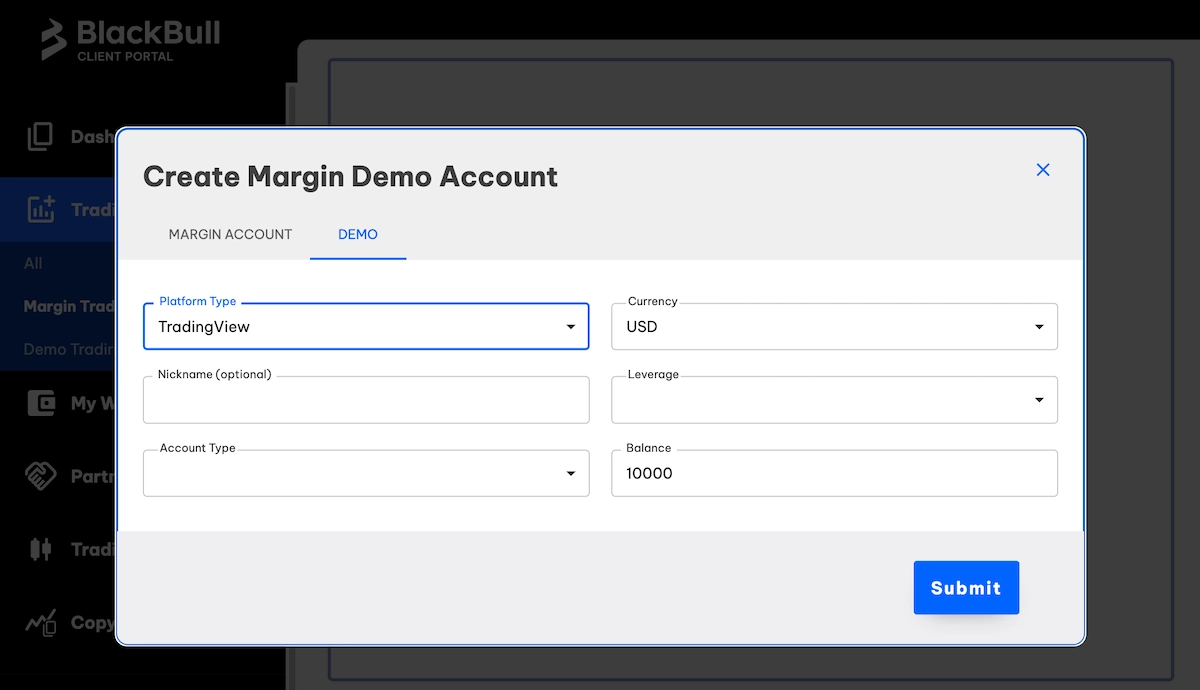
1. Open a TradingView account with BlackBull: Go to your BlackBull Client Portal and click on ‘Trading Accounts’. Next, select the ‘Margin Trading’ tab and then ‘Create Account’.
Choose TradingView as the Platform Type, adjust your other settings like account type, currency, and leverage, and click ‘Submit’.
If you want to practice with virtual money, use the ‘Demo Trading’ tab instead.
Keep in mind, an MT5 account won’t work here because each account is linked to the platform you choose.
2. Add funds to your account: When you deposit money, it stays in your BlackBull Wallet until you transfer it. To move funds, go to ‘My Wallet’ and select ‘Internal Transfer’.
Set your Wallet as the New Source and your TradingView account as the New Target, enter the amount, and click ‘Submit’.
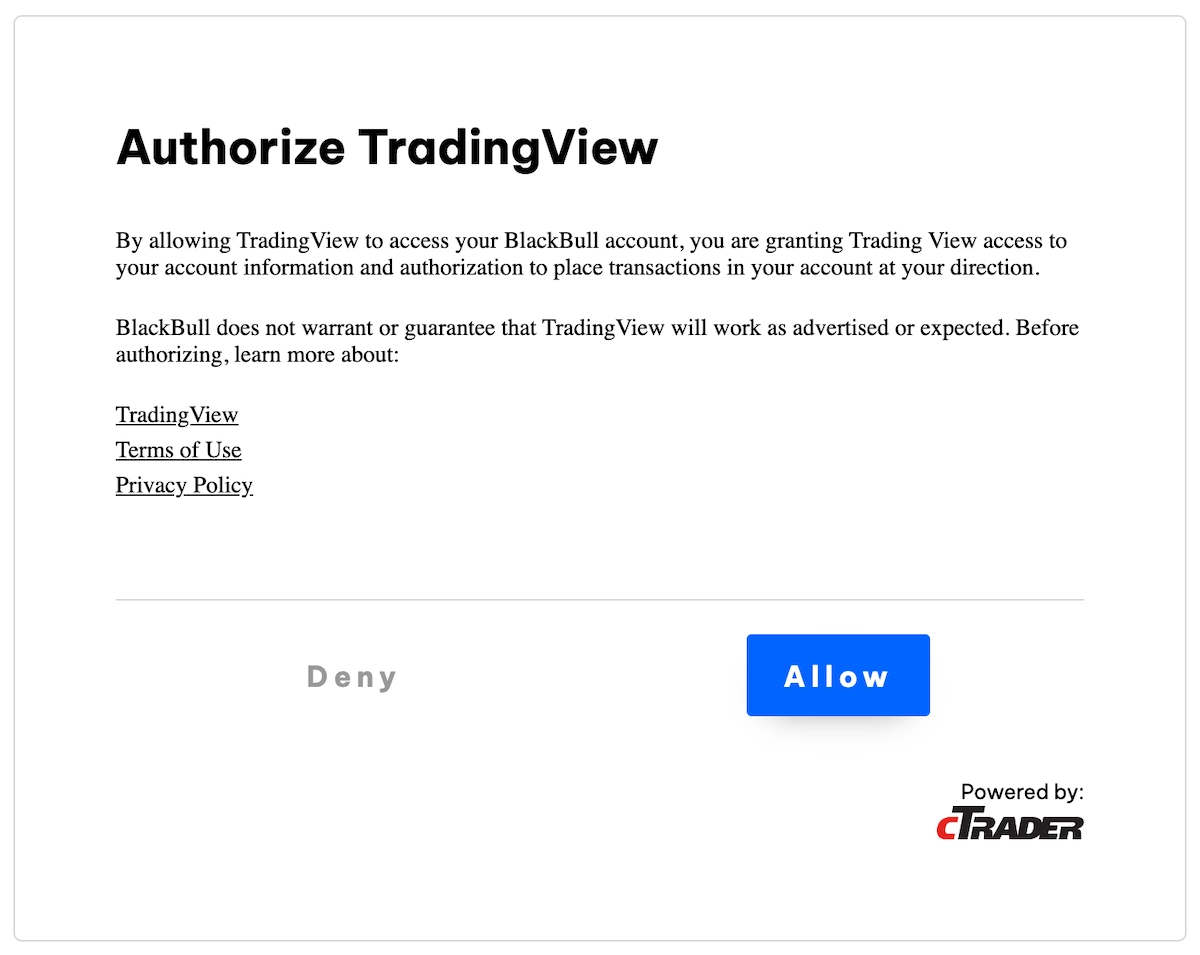
3. Connect TradingView: In your BlackBull Client Portal, go to ‘Trading Accounts’ and click ‘Launch TradingView’. Log in to TradingView.com or create a free account, then click ‘Connect’ in the pop-up window.
Enter your Client Portal email and password (not your TradingView login), and click ‘Allow’. TradingView will reopen with your account now linked.
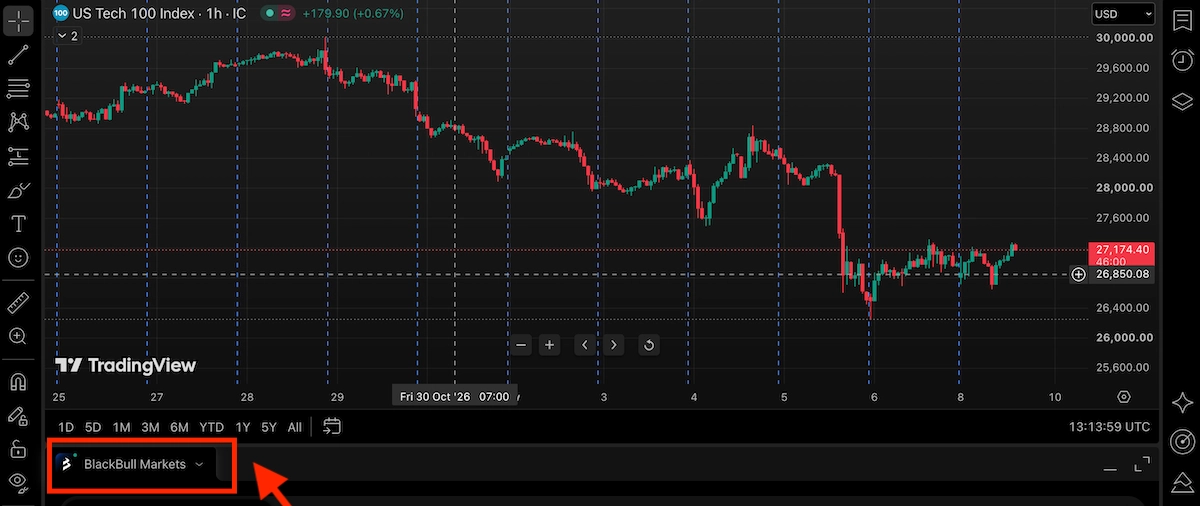
4. Trade from TradingView: Open any chart on TradingView and look for the Trading Panel at the bottom. If you see ‘BlackBull Markets’, your connection is set up.
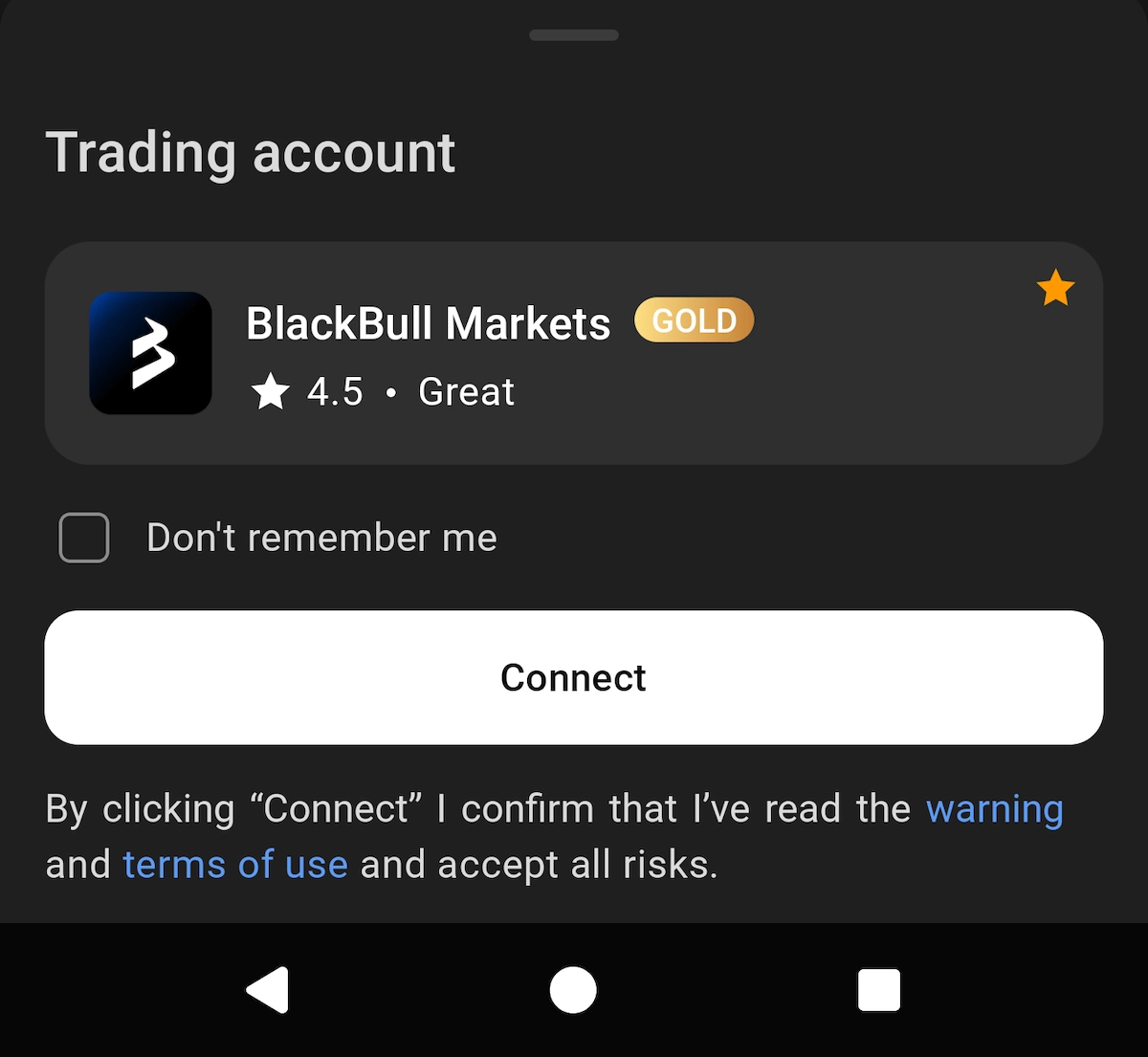
5. Connect on your phone: Download TradingView from the or App Store Google Play. Tap the chart tab, open the three-dot menu, and select ‘Trade with your broker’. Pick ‘BlackBull Markets’, tap ‘Connect’, log in, and tap ‘Allow’.
Then, tap the world icon on a chart and choose ‘BlackBull Markets’ as the source to see BlackBull’s prices.
You’ll know it worked when you see BlackBull Markets in the Trading Panel with your balance. Both demo and live accounts show up in the same dropdown, so double-check you pick the right one before trading.
Common BlackBull TradingView Problems And Fixes
| Problem | Likely cause | Fix |
|---|---|---|
| BlackBull’s login page rejects you | You used your TradingView password | Use your BlackBull Client Portal email and password, or click ‘Forgot password’ at login |
| Balance shows ‘0.00’ | Your money is still in your BlackBull Wallet | Move it with ‘My Wallet’, then ‘Internal Transfer’, from your BlackBull Client Portal |
| Account missing from the dropdown | It was made for MT4, MT5 or cTrader | Create a new account in the BlackBull Client Portal with TradingView as the ‘Platform Type’ |
| Leverage looks wrong | Leverage (opening trades bigger than your deposit) is set in BlackBull, not TradingView | Change it in the BlackBull Client Portal’s Trading Accounts tab. It only changes forex and metals; other markets are fixed |
| Chart prices differ from your trade prices | The chart uses another company’s prices, such as ‘OANDA:XAUUSD’ | Search the market again and pick the BlackBull Markets source, or tap the world icon on mobile |
Tips For Maximizing TradingView With BlackBull Markets
Once you’re connected, here are two tips I’ve learned from over 10 years of using TradingView:
- You can get a paid TradingView plan for free. The Essential, Plus, and Premium plans cost $14.95, $34.95, and $69.95 per month. BlackBull will reimburse you if you trade 1, 5, or 10 lots each month. One standard lot is 100,000 units of currency, so 1 lot of EUR/USD is €100,000. Only forex and metal trades, like gold, that stay open for at least 10 minutes count. Hedged trades, where you buy and sell the same market at the same time, don’t count. Ten trades of 0.1 lots add up to 1 lot, and Premium means trading about half a lot each day. If you reach that every month, you save $839.40 a year at the monthly price. You’ll need to pay TradingView first, then email BlackBull once you qualify, and they’ll add the cost to your live account each month.
- Try practicing on a demo account first. In BlackBull’s TradingView order window, you enter your trade size in lots. Entering 1 means you’re opening a €100,000 EUR/USD trade, not a €1 trade. Using a demo account helps you get used to this without risking real money.
If you’re new to BlackBull, check out our BlackBull Markets review first. If you prefer MetaTrader, you can also learn how to connect BlackBull Markets to MT5.