How To Connect Pepperstone To MT5
Connecting your Pepperstone account to MetaTrader 5 is straightforward if you have the credentials to hand and follow these steps. We know – we’ve done it.
 Written By
Christian Harris
Christian is a seasoned analyst, leveraging his expertise in stocks, forex, and crypto to evaluate brokers worldwide. With hands-on trading experience and a strong focus on risk management, he helps traders find reliable platforms. Christian's work for BrokerListings.com has been cited in the Financial Times.
Christian Harris Profile Page Fact Checked By
Tobias Robinson
Tobias is committed to helping traders find the right brokerage for their needs. He has tested 200+ brokers, spent 2,600+ hours using different platforms, and placed 2,100+ trades.
Tobias Robinson Profile Page Edited By
James Barra
James is an experienced broker analyst with a background in financial services. He has spent 2,500+ hours testing brokers, used 35+ different platforms and apps, audited 120+ broker T&Cs, and verified 300+ regulatory licenses. James has also been on US and UK TV, and been a guest on finance podcasts, discussing reports conducted by BrokerListings.com and sharing his expertise.
James Barra Profile PageAugust 17, 2026
1. Get Your Pepperstone Credentials
You cannot use your primary Pepperstone client area password to log into MetaTrader 5 directly. First, log in to your secure Pepperstone account dashboard on the broker’s website. Navigate to the ‘Trading Accounts’ tab in the left-hand menu and click to add a new live or demo MT5 setup.
If creating a new account, you’ll need to select your desired account option (Standard or Razor), choose your account’s primary base currency (e.g. USD, EUR, GBP, CHF), and select the trading platform (MetaTrader 5 in this case). You can see what this looks like below.
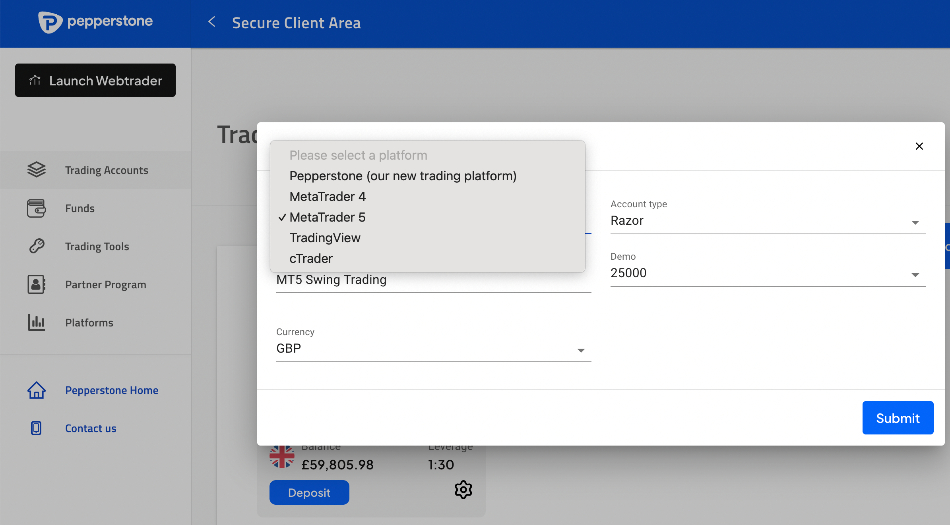
The system will generate your unique MT5 account login number and assign a designated server address, such as ‘PepperstoneUK-Live’. Note these details down alongside the custom trading password you configure, as you will need them to sync the software terminal.
2. Setting Up the MetaTrader 5 Terminal
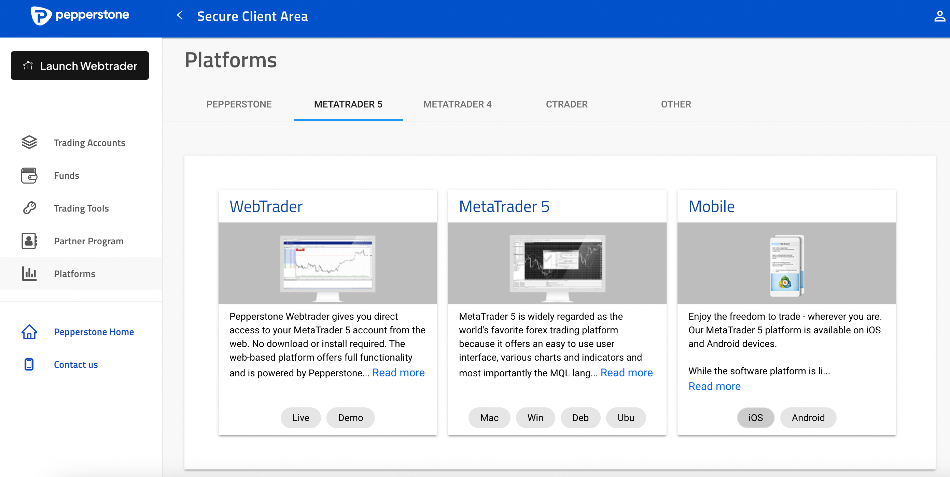
Download the MT5 installation package directly from the ‘Platforms’ section of the Pepperstone portal, or download the mobile app from your official device app store.
If you download it from the Pepperstone area you can download it for Windows, Mac or a Debian-based Linux package or a Ubuntu-specific Linux download.
Run the setup file and follow the basic installation wizard steps. Once complete, launch the desktop application. If a default account creation pop-up appears, you can close it immediately, as your existing credentials are ready for use.
3. Locate The Broker Network
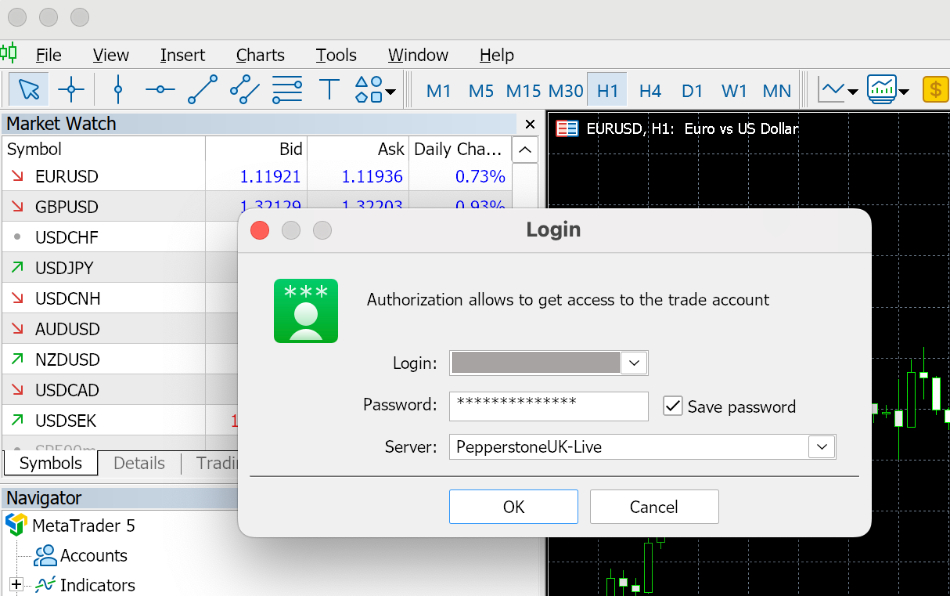
To link your terminal to Pepperstone’s network, go to the top application menu bar. Click on ‘File’, and select ‘Login to Trade Account’. This opens the login window, which looks like the below.
Paste your specific MT5 account number into the login field, then enter your corresponding trading password. Use the dropdown menu to select the exact server name provided in your dashboard (e.g., ‘PepperstoneUK-Live’). Click ‘Ok’ to establish the connection. You will hear a confirmation chime, and your live balance and account metrics will display instantly in the terminal window.