 Top Lists for USA
How To Connect IC (Previously IC Markets) to MT5
IC supports MT5 directly. You create accounts in the client portal, and the platform connects using a login number, password, and server name.
 Written By
Christian Harris
Christian is a seasoned analyst, leveraging his expertise in stocks, forex, and crypto to evaluate brokers worldwide. With hands-on trading experience and a strong focus on risk management, he helps traders find reliable platforms. Christian's work for BrokerListings.com has been cited in the Financial Times.
Christian Harris Profile Page Fact Checked By
Tobias Robinson
Tobias is committed to helping traders find the right brokerage for their needs. He has tested 200+ brokers, spent 2,600+ hours using different platforms, and placed 2,100+ trades.
Tobias Robinson Profile Page Edited By
James Barra
James is an experienced broker analyst with a background in financial services. He has spent 2,500+ hours testing brokers, used 35+ different platforms and apps, audited 120+ broker T&Cs, and verified 300+ regulatory licenses. James has also been on US and UK TV, and been a guest on finance podcasts, discussing reports conducted by BrokerListings.com and sharing his expertise.
James Barra Profile PageOctober 7, 2026
Step-By-Step Connection
- Log in to the IC Client Portal.
- Go to ‘My Accounts’ and click ‘Create Live Account.’ Then select MT5 as the platform.
- Note your MT5 account number and set a trading password (separate from your portal password).
- Download MT5 from the IC portal page. This will automatically set up the server list for IC.
- Open MT5. Click File → Open an Account → search ‘IC’ ‘IC.com’ or ‘Raw Trading Ltd’ for offshore entities.
- Select the correct server for your entity (see table below) and enter your account number and trading password.
- Click Finish. You should see ‘Connected’ in the bottom right toolbar within seconds.
Server Names By Entity
Choosing the wrong server is a common connection mistake. If this happens, the login will fail without explanation. It will only say that your credentials are invalid, not that the server is incorrect. Below is a breakdown of MT5 servers at IC’s key entities:
| Entity | Current Server Examples | Where to Confirm |
|---|---|---|
| ASIC (Australia) | ICMarketsAU – Live | IC credentials email or Secure Client Area |
| CySEC (EU) | ICMarketsEU-MT5-5; ICMarketsEU-Demo | IC credentials email or Secure Client Area |
| FSA (Seychelles / Global) | ICMarketsSC-MT5; ICMarketsSC-MT5-2; ICMarketsSC-MT5-3; ICMarketsSC-MT5-4; ICMarketsSC-MT5-6; ICMarketsSC-Demo | IC credentials email or Secure Client Area |
Note that:
- Server names can change and IC operates multiple servers, so always use the exact server assigned to your account rather than selecting one solely by entity.
- MT4 login details do not work on MT5. If you created an MT4 account, you’ll need to create a separate MT5 account in the IC Client Portal.
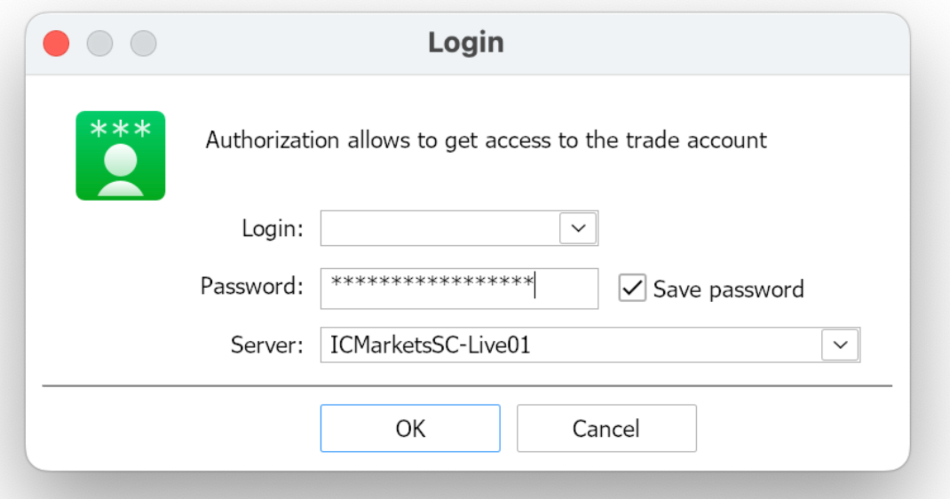
Connecting to an IC server on MT5 requires having the correct login details
What Works Once MT5 Is Connected
- All 2,250 to 2,850+ IC instruments load automatically — no manual symbol import.
- Expert Advisors (EAs) and algorithmic bots run without restriction — IC.com explicitly allows automated trading.
- One-click trading, depth of market, and economic calendar all function natively.
- Hedging is permitted on MT5 — you can hold simultaneous long and short positions on the same instrument.
Common Issues and Fixes
| Problem | Likely cause | Fix |
|---|---|---|
| ‘Invalid account’ on login | Wrong server selected | Check your entity and select the matching server from the table above |
| Platform shows ‘No connection’ | Firewall blocking port 443 | Allow MT5 through the firewall, or try a different network |
| Missing instruments | Symbol not added to Market Watch | Right-click Market Watch → Show All → search for the instrument |
| EA not executing | Algo Trading button disabled | Click the ‘Algo Trading’ button in the toolbar so it turns green |